Tutorials
Tutorial 1: a simple project
1.1 Development environment - principles
Warning
Micc was designed for supporting HPC developers, and, consequentially, with Linux systems in mind. We provide support for Linux (Ubuntu 19.10, CentOS 7.7), and macOS. Due to lack of human resources, Windows is currently not supported.
For Python development, we highly recommend to set up your development environment as described in My Python Development Environment by Jacob Kaplan-Moss. We will assume that this is indeed the case for all tutorials here. In particular:
- We are using pyenv to manage different Python versions on our system.
- We use pipx to install applications like Micc and CMake system-wide together with their own virtual environment.
- Poetry is used to set up virtual environments for the projects we are working, for managing their dependencies and for publishing them to PyPI.
- Micc is used to set up the project structure, as the basis of everything that will be described in the tutorials below.
- For Micc projects with binary extension the necessary compilers must be installed on the system.
- As an IDE for Python/Fortran/C++ development we recommend:
- Eclipse IDE for Scientific Computing with the PyDev plugin. This is an old time favorite of mine, although The learning curve is a bit steep and documentation could be better. Today, PyDev is beginning to lag behind for Python, but Eclipse is still very good for Fortran and C++.
- PyCharm Community Edition. I only tried this one recently and was very soon convinced for python development. (Didn’t go back to Eclipse once since then). I currently have insufficient experience for Fortran and C++ for making recommendations.
1.2 Setting up your Development environment - step by step
Install pyenv: See Managing Multiple Python Versions With pyenv for common install instructions on macos and Linux.
Install your favourite Python versions. E.g.:
> pyenv install 3.8.0
Install poetry. The recommended way for this is:
> curl -sSL https://raw.githubusercontent.com/python-poetry/poetry/master/get-poetry.py | python
This approach will give you one single system-wide Poetry installations, which will automatically pick up the current Python version as set by pyenv. Note, that as of Poetry 1.0.0, Poetry will alse detect conda virtual environments.
Alternatively, you can install poetry using pip:
> pyenv local 3.8.0
> pip install poetry
This approach will not pick up the current Python version, but instead will always use the Python it was installed with, c.q. 3.8.0. This approach requires you to install Poetry in every Python version you want to use it with. When done, unset the local pyenv version:
> pyenv local --unset
Configure your poetry installation:
    > poetry config virtualenvs.in-project true

This ensures that running ``poetry install`` in a project directory will create a
project's virtual environment in its own root directory, rather than somewhere in
the Poetry_ configuration directories, where it is less accessible. If you have
several Poetry_ installations, they all use the same configuration.
Install pipx:
> python -m pip install --user pipx
> python -m pipx ensurepath
Note
This will use the Python version returned by
pyenv version. Micc is certainly comfortable with Python 3.7 and 3.8.Install micc with pipx:
> pipx install et-micc
  installed package et-micc 0.10.8, Python 3.8.0
  These apps are now globally available
    - micc
done!
Note
This will use the Python version with which pipx was installed.
If you want to develop binary extensions in C++ with micc, make sure CMake and make are installed and on your system PATH. You can download CMake directly from cmake.org. Alternatively, CMake is also available as a Python Package which can be installed with pipx:
> pipx install cmake
installed package cmake 3.15.3, Python 3.8.0
  These apps are now globally available
    - cmake
    - cpack
    - ctest
done!
To upgrade to a newer version of a tool that you installed with pipx, use the
upgradecommand, e.g.:> pipx upgrade et-micc et-micc is already at latest version 0.10.8 (location: /Users/etijskens/.local/pipx/venvs/et-micc)
You should be good to go now.
??? To use set up project foo for Python 3.8.0, we would go like this:
> micc -p path/to/foo create
> cd path/to/foo
> pyenv local 3.8.0    # make python 3.8.0 the default python for this project directory
> poetry install
...                    # all dependencies are installed
> source .venv/bin/activate
(.venv) > python --version
Python 3.8.0
The last command verifies that project foo’s virtual environment is indeed based on Python 3.8.0.
If, for some reason or another, we decide later that we need 3.7.9, rather than 3.8.0, we must:
- deactivate the virtual environment,
- delete it,
- delete poetry.lock,
- repeat the above procedure, this time for python 3.7.9.
Here is how it goes:
(.venv) > dectivate
> rm -rf .venv
> rm poetry.lock
> pyenv local 3.7.9
> which python
/Users/etijskens/.pyenv/shims/python
> python --version
Python 3.7.9
> poetry install
...                    # all dependencies are installed
> source .venv/bin/activate
(.venv) > python --version
Python 3.7.9
(.venv) > which python
/path/to/foo/.venv/bin/python
1.1 Getting started with micc
The first thing we need to start a new project is a project name. Ideally, this project name is
- descriptive
- unique
- short
Although one might think of even more requirements, satisfying these three is already hard enough. E.g. my_nifty_module may possibly be unique, but it is neither descriptive, neither short. On the other hand, dot_product is descriptive, reasonably descriptive, but probably not unique. Even my_dot_product is probably not unique, and, in addition, confusing to any user that might want to adopt your my_dot_product. A unique name - or at least one that has not been taken before - becomes really important when you want to publish your code for others to use it. The standard place to publish Python code is the Python Package Index where you find hundreds of thousands of projects ready to be used. Even if you have only a few colleagues that may want to use your code, you make their life easier when you publish your my_nifty_module at PyPI as they will only need to type:
> pip install my_nifty_module
- (The name my_nifty_module is not used so far, but, please, choose a better name).
- Micc will help you publishing your work at PyPI with as little effort as possible.
So, let us call the project ET-dot. ET denote my initials, which helps
to be unique, remains descriptive, and is certainly short. First, cd into a
directory that you want to use as a workspace for storing your Python projects
(I am using ~/software/dev/workspace). Then ask micc to create a project,
like this:
> cd ~/software/dev/workspace
> micc -p ET-dot create
The -p option (which is short for --project-path) tells micc where we
want the project to be created. Here, we request a project directory ET-dot in
the current working directory, here ~/software/dev/workspace. This creates a
project directory with, among quite a bit of other stuff, a Python module et_dot.py
Let’s take a look at the output of the micc create command:
> micc -p ET-dot create

[INFO]           [ Creating project (ET-dot):
[INFO]               Python module (et_dot): structure = (ET-dot/et_dot.py)
[INFO]               [ Creating git repository
[WARNING]                    > git push -u origin master
[WARNING]                    (stderr)
                             remote: Repository not found.
                             fatal: repository 'https://github.com/etijskens/ET-dot/' not found
[INFO]               ] done.
[INFO]           ] done.
>
The first line:
[INFO] [ Creating project (ET-dot):
tells us that micc indeed created a Python project in project directory
ET-dot. The second line:
[INFO] Python module (et_dot): structure = (ET-dot/et_dot.py)
explains that inside our project directory micc created a
Python module et_dot.py. Note that the name of the module is perhaps
not exactly what you expected: it is named et_dot.py, rather than
ET-dot.py. The reason why micc decided to rename the module, is that our
project name ET-dot does not comply with the
PEP8 module naming rules.
To make it compliant, micc replaced all capitals with lowercase, and all spaces ' '
and dashes '-' with underscores '_'. If we had choosen a PEP8 compliant
name for the project directory, the project directory and the module name would
be the same.
Finally, the lines
[INFO]               [ Creating git repository
[WARNING]                    > git push -u origin master
[WARNING]                    (stderr)
                             remote: Repository not found.
                             fatal: repository 'https://github.com/etijskens/ET-dot/' not found
[INFO]               ] done.
tell us that micc created a git repository. Git is a version control system that solves many practical problems related to the process of software development, independent of whether your are the only developer, or there is an entire team working on it from different places in the world. You find more information about how micc uses git in Tutorial 4.
1.1.1 Modules and packages
A Python module is the simplest Python project we can create. It is meant for rather
small projects that fit in a single file. More complex projects have a package
structure, that is, a directory with the same name as the module, i.e. et_dot,
containing a __init__.py file. The __init__.py file marks the
directory as a Python package and contains the statements that are executed when
the module is imported. The module structure is the default structure. When creating
a project you can opt for a package structure by appending the flag -p or
--package to the micc create command:
> micc -p ET-dot create --package

[INFO]           [ Creating project (ET-dot):
[INFO]               Python package (et_dot): structure = (ET-dot/et_dot/__init__.py)
...
[INFO]           ] done.
Alternatively, you can easily convert a module structure project to a package structure project at any time:
> micc -p ET-dot convert-to-package
1.1.2 The project path in in micc
The project path (-p path) is a parameter that is accepted by all micc commands.
Its default value is the current directory. So, once the project is created it is
convenient to cd into it and you can leave out the -p option:
> micc -p ET-dot create
...
> micc -p ET-dot info
Project ET-dot located at /Users/etijskens/software/dev/workspace/ET-dot
  package: et_dot
  version: 0.0.0
  structure: et_dot.py (Python module)

> cd ET-dot
> micc info
Project ET-dot located at /Users/etijskens/software/dev/workspace/ET-dot
  package: et_dot
  version: 0.0.0
  structure: et_dot.py (Python module)
The micc info command shows information about a project.
This is a bit more practical as you do not have to type the -p ET-dot at every
micc command. This approach works even with the micc create command. If you
create an empty directory and cd into it, you can just run micc create:
project like this:
> mkdir ET-dot
> cd ET-dot
> micc create
[INFO]           [ Creating project (ET-dot):
[INFO]               Python package (et_dot): structure = (ET-dot/et_dot/__init__.py)
...
[INFO]           ] done.
Warning
Micc refuses to create a new project in a non-empty directory.
Note
In the rest of the tutorial we assume that the current working directory is the project directory.
1.1.3 Managing the Python version
Your operating system typically comes with a Python version that is used OS tasks. It is, obviously good practice to isolate your system Python from your own developments: wrecking the system Python can indeed give you headaches. In addition, the system Python is often still 2.7.x, which is about to retire in 2020. Using a more recent Python version, or even several different Python versions may be very useful when you are working on many different projects. That is offered conveniently by Pyenv, (at least on macOS and Linux, but unfortunately not on Windows), see see 1.2 Setting up your Development environment - step by step for installation instructions. On my work laptop I usually keep the latest minor recent Python versions, along with the Pythonversion that came with the OS. At the time of writing that was:
> pyenv versions
  system
  3.6.9
  3.7.5
* 3.8.0 (set by /Users/etijskens/.pyenv/version)
The asterisk marks the default Python. You can set the default Python version as
pyenv global <version>. It is good practice not to make the system Python
default. In that way you cannot accidentally wreck your system Python.
Since Python 3.8.0 is the default Python, without any special measures, if you launch Python, it will be 3.8.0. If you want to carry out the development of the ET-dot project in another version, e.g. 3.7.5, you must set a local python version in the project directory:
> cd ET-dot
> pyenv local 3.7.5
> pyenv version
3.7.5 (set by /Users/etijskens/software/dev/ET-dot/.python-version)
> pyenv versions
  system
  3.6.9
* 3.7.5 (set by /Users/etijskens/software/dev/ET-dot/.python-version)
  3.8.0
Now, if you launch Python in the project-directory (or any of its subdirectories
that does not have its own .python-version), it will be Python 3.7.5. In all
othern directories where pyenv local was not run, it will still be the default
Python 3.8.0.
1.1.3 Virtual environments
For a more detailed introduction to virtual environments see Python Virtual Environments: A Primer.
When you are developing or using several Python projects it can become difficult for a single Python environment to satisfy all the dependency requirements of these projects simultaneously. Dependencies conflict can easily arise. Python promotes and facilitates code reuse and as a consequence Python tools typically depend on tens to hundreds of other modules. If toolA and toolB both need moduleC, but each requires a different version of it, there is a conflict because it is impossible to install two versions of the same module in a Python environment. The solution that the Python community has come up with for this problem is the construction of virtual environments, which isolates the dependencies of a single project to a single environment.
1.1.3.1 Creating virtual environments
Since Python 3.3 Python comes with a venv module for the creation of
virtual environments:
> python -m venv my_virtual_environment
This creates a directory my_virtual_environment containing a complete and
isolated Python environment. This virtual environment can be activated sa:
> source my_virtual_environment/bin/activate
(my_virtual_environment) >
Activating a virtual environment modifies the command prompt to remind you constantly that you are working in a virtual environment. The virtual environment is based on the current Python - by preference set by pyenv. If you install new packages, they will be installed in the virtual environment only. The virtual environment can be deactivated by running
(my_virtual_environment) > deactivate
>
1.1.3.2 Creating virtual environments with Poetry
Poetry uses the above mechanism to manage virtual environment on a per project
basis, and can install all the dependencies of that project, as specified in the
pyproject.toml file, using the install command. Since our project does
not have a virtual environment yet, poetry creates one, named .venv, and
installs all dependencies in it. We first choose the Python version to use for the
project:
> pyenv local 3.7.5
> poetry install
Creating virtualenv et-dot in /Users/etijskens/software/dev/ET-dot/.venv
Updating dependencies
Resolving dependencies... (0.8s)

Writing lock file


Package operations: 10 installs, 0 updates, 0 removals

  - Installing pyparsing (2.4.5)
  - Installing six (1.13.0)
  - Installing atomicwrites (1.3.0)
  - Installing attrs (19.3.0)
  - Installing more-itertools (7.2.0)
  - Installing packaging (19.2)
  - Installing pluggy (0.13.1)
  - Installing py (1.8.0)
  - Installing wcwidth (0.1.7)
  - Installing pytest (4.6.6)
  - Installing ET-dot (0.0.0)
The installed packages are all dependencies of pytest which we require for testing
our code. The last package is ET-dot itself, which is installed in so-called
development mode. This means that any changes in the source code are immediately
visible in the virtual environment. Adding/removing dependencies is easily achieved
by running poetry add some_module and poetry remove some_other_module.
Consult the poetry documentation for details
If the virtual environment already exists, or if some virtual environment is activated (not necessarily that of the project itself - be warned), that virtual environment is reused and all installations pertain to that virtual environment.
To use the just created virtual environment of our project, we must activate it:
> source .venv/bin/activate
(.venv) > which python
/Users/etijskens/software/dev/ET-dot/.venv/bin/python
(.venv)> python --version
> python --version
Python 3.7.5
The location of the virtual environment’s Python and its version are as expected.
Note
Whenever you see a command prompt like (.venv) > the local virtual environment
of the project has been activated. If you want to try yourself, you must activate it too.
To deactivate a script just run deactivate:
(.venv) > deactivate
> which python
/Users/etijskens/.pyenv/shims/python
The (.venv) notice disappears, and the active python is no longer that in the
virtual environment.
If something is wrong with a virtual environment, you can simply delete it:
> rm -rf .venv
and create a new one. Sometimes it is necessary to delete the poetry.lock as well:
> rm poetry.lock
1.1.4 Modules and scripts
Note that micc always creates fully functional examples, complete with test code and documentation generation, so that you can inspect the files and see as much as possible how things are supposed to work. E.g. here is the :file`ET-dot/et_dot.py` module:
# -*- coding: utf-8 -*-
"""
Package et_dot
==============

A 'hello world' example.
"""
__version__ = "0.0.0"


def hello(who='world'):
    """'Hello world' method."""
    result = "Hello " + who
    return result
The module can be used right away. Open an interactive Python session and enter the following commands:
> cd path/to/ET-dot
> source .venv/bin/activate
(.venv) > python
Python 3.8.0 (default, Nov 25 2019, 20:09:24)
[Clang 11.0.0 (clang-1100.0.33.12)] on darwin
Type "help", "copyright", "credits" or "license" for more information.
>>> import et_dot
>>> et_dot.hello()
'Hello world'
>>> et_dot.hello("student")
'Hello student'
>>>
Productivity tip
Using an interactive python session to verify that a module does indeed what
you expect is a bit cumbersome. A quicker way is to modify the module so that it
can also behave as a script. Add the following lines to ET-dot/et_dot.py
at the end of the file:
if __name__=="__main__":
   print(hello())
   print(hello("student"))
and execute it on the command line:
(.venv) > python et_dot.py
Hello world
Hello student
The body of the if statement is only executed if the file is executed as
a script. When the file is imported, it is ignored.
While working on a single-file project it is sometimes handy to put your tests
the body of if __name__=="__main__":, as below:
if __name__=="__main__":
   assert hello() == "Hello world"
   assert hello("student") == "Hello student"
   print("-*# success #*-")
The last line makes sure that you get a message that all tests went well if they
did, otherwise an AssertionError will be raised.
When you now execute the script, you should see:
(.venv) > python et_dot.py
-*# success #*-
When you develop your code in an IDE like eclipse+pydev or PyCharm, you can even execute the file without having to leave your editor and switch to a terminal. You can quickly code, test and debug in a single window.
While this is a very productive way of developing, it is a bit on the quick and dirty side. If the module code and the tests become more involved, however,the file will soon become cluttered with test code and a more scalable way to organise your tests is needed. Micc has already taken care of this.
1.1.5 Testing your code
When micc creates a new project, or when you add components to an existing project,
it immediately adds a test script for each component in the tests directory.
The test script for the et_dot module is in file ET-dot/tests/test_et_dot.py.
Let’s take a look at the relevant section:
# -*- coding: utf-8 -*-
"""Tests for et_dot package."""

import et_dot

def test_hello_noargs():
    """Test for foo.hello()."""
    s = foo.hello()
    assert s=="Hello world"

def test_hello_me():
    """Test for foo.hello('me')."""
    s = foo.hello('me')
    assert s=="Hello me"
Tests like this are very useful to ensure that during development the changes to your code do not break things. There are many Python tools for unit testing and test driven development. Here, we use Pytest:
> pytest
=============================== test session starts ===============================
platform darwin -- Python 3.7.4, pytest-4.6.5, py-1.8.0, pluggy-0.13.0
rootdir: /Users/etijskens/software/dev/workspace/foo
collected 2 items

tests/test_foo.py ..                                                        [100%]

============================ 2 passed in 0.05 seconds =============================
The output shows some info about the environment in which we are running the tests,
the current working directory (c.q. the project directory, and the number of tests
it collected (2). Pytest looks for test methods in all test_*.py or
*_test.py files in the current directory and accepts test prefixed methods
outside classes and test prefixed methods inside Test prefixed classes as test
methods to be executed.
If a test would fail you get a detailed report to help you find the cause of the error and fix it.
1.1.6 Debugging test code
When the report provided by pytest does not yield a clue on the
cause of the failing test, you must use debugging and execute the failing test step
by step to find out what is going wrong where. From the viewpoint of pytest, the
files in the tests directory are modules. Pytest imports them and collects
the test methods, and executes them. Micc makes every test module executable using
the technique described in 1.1.4 Modules and scripts. At the end of every test file you
will find some extra code
if __name__ == "__main__":
    the_test_you_want_to_debug = test_hello_noargs

    print("__main__ running", the_test_you_want_to_debug)
    the_test_you_want_to_debug()
    print('-*# finished #*-')
On the first line of the if __name__ == "__main__": body, the variable
the_test_you_want_to_debug is set to the name of some test method in our
test file test_et_dot.py, here test_hello_noargs. The variable
the_test_you_want_to_debug is now just another variable pointing to the
very same function object as test_hello_noargs and behaves exactly the
same (see Functions are first class objects).
The next statement prints a start message that tells you that __main__ is running that
test method, after which the test method is called through the the_test_you_want_to_debug
variable, and finally another message is printed to let you know that the script finished.
Here is the output you get when running this test file as a script:
(.venv) > python tests/test_et_dot.py
__main__ running <function test_hello_noargs at 0x1037337a0>
-*# finished #*-
The execution of the test does not produce any output. Now you can use your favourite
Python debugger to execute this script and step into the test_hello_noargs
test method and from there into foo.hello to examine if everything goes as
expected. Thus, to debug a failing test, you assign its name to the
the_test_you_want_to_debug variable and debug the script.
Note
As test code is also code, it can contain bugs. More often than not, it happens that the code tested is correct, but the test is flawed.
1.1.7 Generating documentation
Documentation is extracted from the source code using Sphinx.
It is almost completely generated automatically from the doc-strings in your code. Doc-strings are the
text between triple double quote pairs in the examples above, e.g. """This is a doc-string.""".
Important doc-strings are:
- module doc-strings: at the beginning of the module. Provides an overview of what the module is for.
- class doc-strings: right after the
classstatement: explains what the class is for. (Usually, the doc-string of the __init__ method is put here as well, as dunder methods (starting and ending with a double underscore) are not automatically considered by sphinx. - method doc-strings: right after a
defstatement.
According to pep-0287 the recommended format for Python doc-strings is restructuredText. E.g. a typical method doc-string looks like this:
def hello_world(who='world'):
    """Short (one line) description of the hello_world method.

    A detailed and longer description of the hello_world method.
    blablabla...

    :param str who: an explanation of the who parameter. You should
        mention its default value.
    :returns: a description of what hello_world returns (if relevant).
    :raises: which exceptions are raised under what conditions.
    """
Here, you can find some more examples.
Thus, if you take good care writing doc-strings, helpfule documentation follows automatically.
Micc sets up al the necessary components for documentation generation in sub-directory
et-dot/docs/. There, you find a Makefile that provides a simple interface
to Sphinx. Here is the workflow that is necessary to build the documentation:
> cd path/to/et-dot
> source .venv/bin/activate
(.venv) > cd docs
(.venv) > make <documentation_format>
Let’s explain the steps
cdinto the project directory:> cd path/to/et-dot >
Activate the project’s virtual environment:
> source .venv/bin/activate
(.venv) >
cdinto the docs subdirectory:(.venv) > cd docs (.venv) >
Here, you will find the
Makefilethat does the work:(.venv) > ls -l total 80 -rw-r--r-- 1 etijskens staff 1871 Dec 10 11:24 Makefile ...
To see a list of possible documentation formats, just run make without arguments:
(.venv) > make
Sphinx v2.2.2
Please use `make target' where target is one of
  html        to make standalone HTML files
  dirhtml     to make HTML files named index.html in directories
  singlehtml  to make a single large HTML file
  pickle      to make pickle files
  json        to make JSON files
  htmlhelp    to make HTML files and an HTML help project
  qthelp      to make HTML files and a qthelp project
  devhelp     to make HTML files and a Devhelp project
  epub        to make an epub
  latex       to make LaTeX files, you can set PAPER=a4 or PAPER=letter
  latexpdf    to make LaTeX and PDF files (default pdflatex)
  latexpdfja  to make LaTeX files and run them through platex/dvipdfmx
  text        to make text files
  man         to make manual pages
  texinfo     to make Texinfo files
  info        to make Texinfo files and run them through makeinfo
  gettext     to make PO message catalogs
  changes     to make an overview of all changed/added/deprecated items
  xml         to make Docutils-native XML files
  pseudoxml   to make pseudoxml-XML files for display purposes
  linkcheck   to check all external links for integrity
  doctest     to run all doctests embedded in the documentation (if enabled)
  coverage    to run coverage check of the documentation (if enabled)
(.venv) >
To build documentation in html format, enter:
(.venv) > make html
...
(.venv) >
This will generation documentation in
et-dot/docs/_build/html. Note that it is essential that this command executes in the project’s virtual environment. You can view the documentation in your favorit browser:(.venv) > open _build/html/index.html
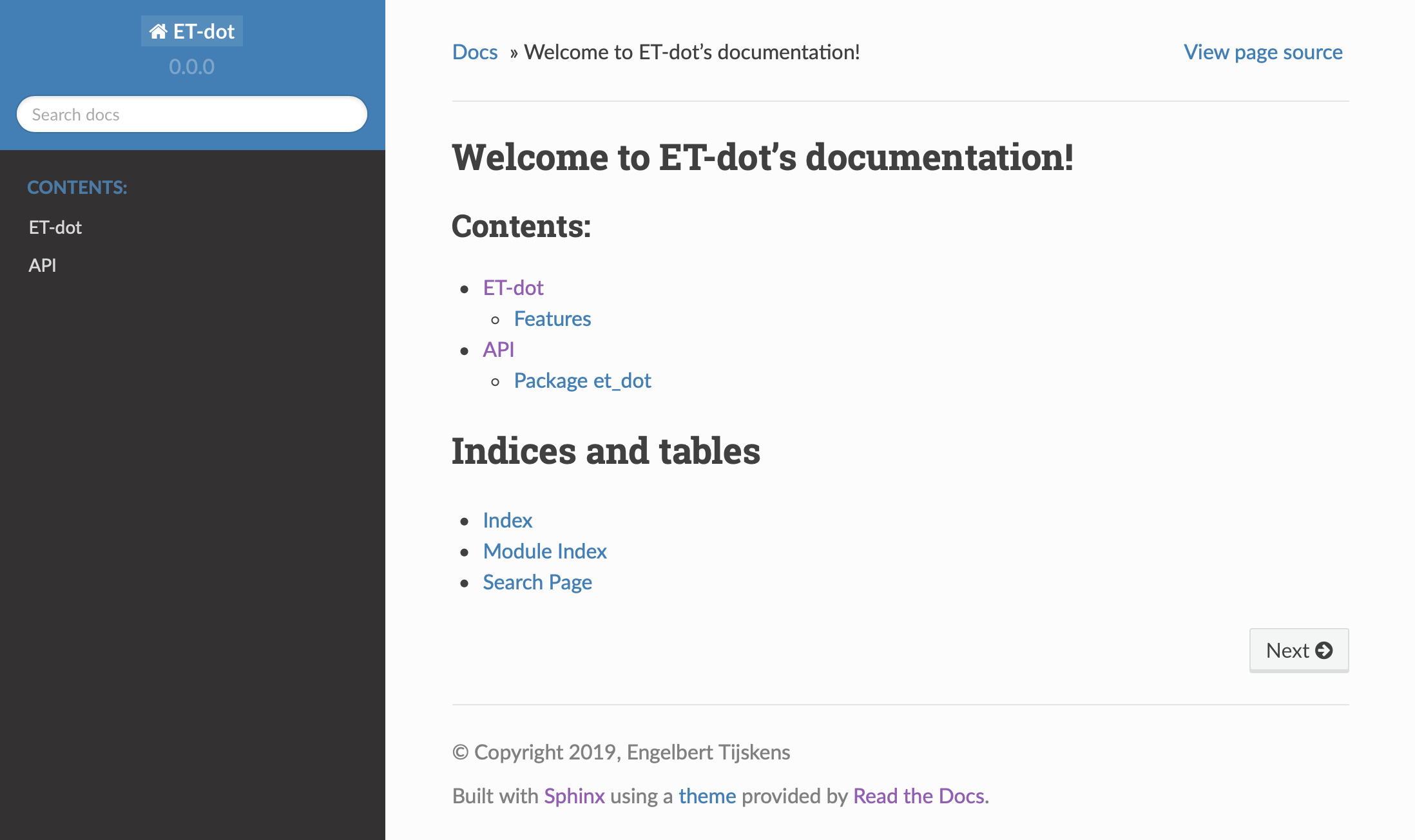
Here is a screenshot:
If your expand the API tab on the left, you get to see the
et_dotmodule documentation, as it generated from the doc-strings: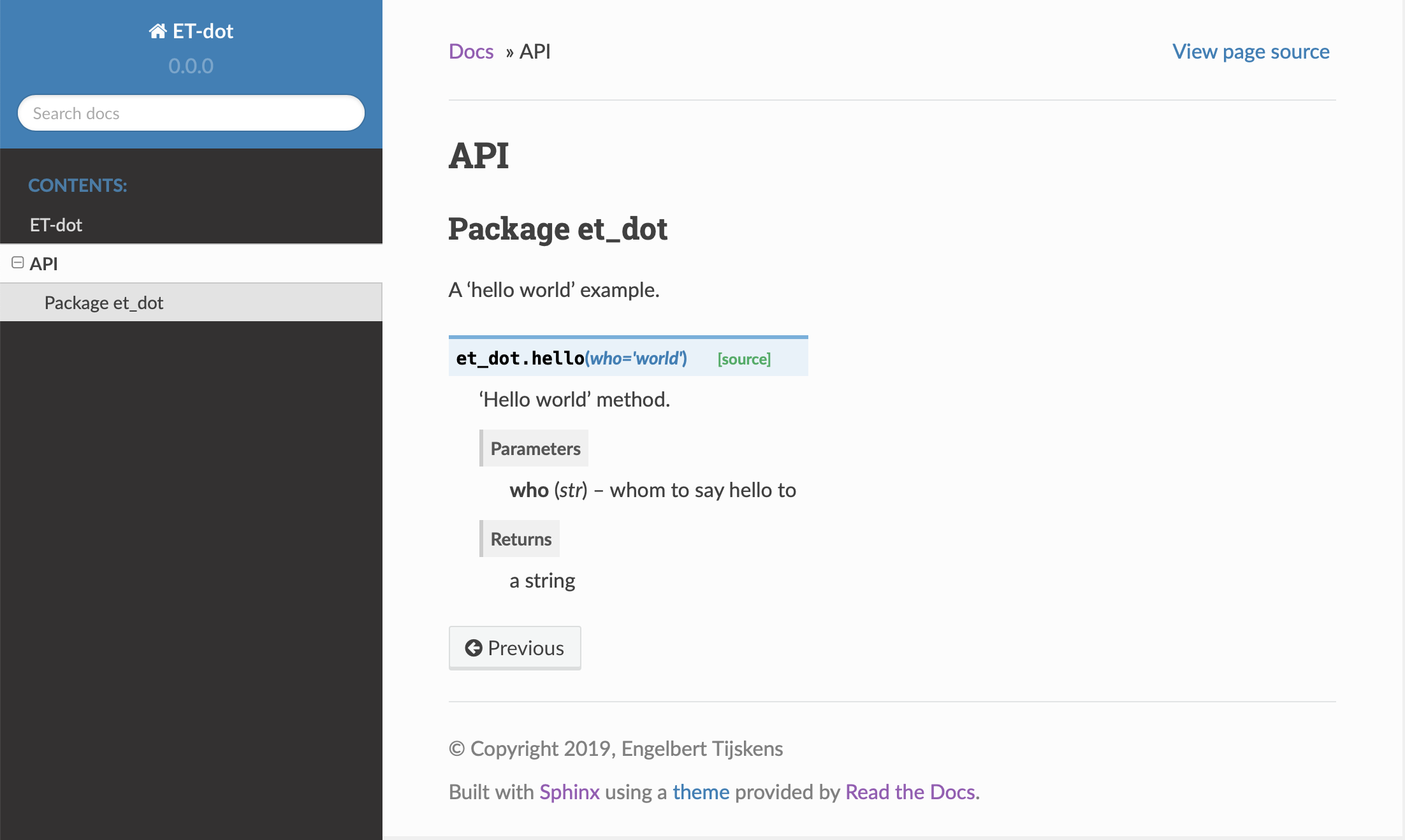
To build documentation in .pdf format, enter:
(.venv) > make latexpdf
This will generation documentation in :file:et-dot/docs/_build/latex/et-dot.pdf`. Note that it is essential that this command executes in the project’s virtual environment. You can view it in your favorite pdf viewer:
(.venv) > open _build/latex/et-dot.pdf
(.venv) >
Note
When building documentation by running the docs/Makefile, it is
verified that the correct virtual environment is activated, and that the needed
Python modules are installed in that environment. If not, they are first installed
using pip install. These components are not becoming dependencies of the project.
If needed you can add dependencies using the poetry add command.
The boilerplate code for documentation generation is in the docs directory, just as
if it were generated by hand using sphinx-quickstart. (In fact, it was generated using
sphinx-quickstart, but then turned into a
Cookiecutter template.)
those files is not recommended, and only rarely needed. Then there are a number
of .rst files with capitalized names in the project directory:
README.rstis assumed to contain an overview of the project,API.rstdescribes the classes and methods of the project in detail,APPS.rstdescribes command line interfaces or apps added to your project.AUTHORS.rstlist the contributors to the projectHISTORY.rstwhich should describe the changes that were made to the code.
The .rst extenstion stands for reStructuredText. It iss a simple and concise
approach to text formatting.
If you add components to your project through micc, care is taken that the
.rst files in the project directory and the docs directory are
modified as necessary, so that sphinx is able find the doc-strings. Even for
command line interfaces (CLI, or console scripts) based on
click the documentation is generated
neatly from the help strings of options and the doc-strings of the commands.
1.1.8 The license file
The project directory contains a LICENCE file, a text file
describing the licence applicable to your project. You can choose between
- MIT license (default),
- BSD license,
- ISC license,
- Apache Software License 2.0,
- GNU General Public License v3 and
- Not open source.
MIT license is a very liberal license and the default option. If you’re unsure which license to choose, you can use resources such as GitHub’s Choose a License
You can select the license file when you create the project:
> cd some_empty_dir
> micc create --license BSD
Of course, the project depends in no way on the license file, so it can be replaced manually at any time by the license you desire.
1.1.9 The Pyproject.toml file
The file pyproject.toml (located in the project directory) is the
modern way to describe the build system requirements of the project:
PEP 518. Although most of
this file’s content is generated automatically by micc and poetry some
understanding of it is useful, consult https://poetry.eustace.io/docs/pyproject/.
The pyproject.toml file is rather human-readable:
> cat pyproject.toml
[tool.poetry]
name = "ET-dot"
version = "1.0.0"
description = "<Enter a one-sentence description of this project here.>"
authors = ["Engelbert Tijskens <engelbert.tijskens@uantwerpen.be>"]
license = "MIT"

readme = 'README.rst'

repository = "https://github.com/etijskens/ET-dot"
homepage = "https://github.com/etijskens/ET-dot"

keywords = ['packaging', 'poetry']

[tool.poetry.dependencies]
python = "^3.7"
et-micc-build = "^0.10.10"

[tool.poetry.dev-dependencies]
pytest = "^4.4.2"

[tool.poetry.scripts]

[build-system]
requires = ["poetry>=0.12"]
build-backend = "poetry.masonry.api"
1.1.10 The log file Micc.log
The project directory also contains a log file micc.log. All micc commands
that modify the state of the project leave a trace in this file, So you can look up
what happened when to your project. Should you think that the log file has become
too big, or just useless, you can delete it manually, or add the --clear-log flag
before any micc subcommand, to remove it. If the subcommand alters the state of the
project, the log file will only contain the log messages from the last subcommand.
> ll micc.log
-rw-r--r--  1 etijskens  staff  34 Oct 10 20:37 micc.log

> micc --clear-log info
Project bar located at /Users/etijskens/software/dev/workspace/bar
  package: bar
  version: 0.0.0
  structure: bar.py (Python module)

> ll micc.log
ls: micc.log: No such file or directory
1.1.11 Adjusting micc to your needs
Micc is based on a series of additive Cookiecutter templates which generate the
boilerplate code. If you like, you can tweak these templates in the
site-packages/et_micc/templates directory of your micc installation. When you
pipx installed micc, that is typically something like:
~/.local/pipx/venvs/et-micc/lib/pythonX.Y/site-packages/et_micc,
where :file`pythonX.Y` is the python version you installed micc with.
1.2 Your first project
Let’s start with a simple problem: a Python module that computes the dot product of two arrays. Admittedly, this not a very rewarding goal, as there are already many Python packages, e.g. Numpy, that solve this problem in an elegant and efficient way. However, because the dot product is such a simple concept in linear algebra, it allows us to illustrate the usefulness of Python as a language for High Performance Computing, as well as the capabilities of Micc.
If you haven’t carried out the steps in 1.1 Getting started with micc, set up a new project (you are of course encouraged to change the project name as to make it unique) :
> micc -p ET-dot create --package
[INFO]           [ Creating project (ET-dot):
[INFO]               Python package (et_dot): structure = (ET-dot/et_dot/__init__.py)
[INFO]               [ Creating git repository
[WARNING]                    > git push -u origin master
[WARNING]                    (stderr)
                             remote: Repository not found.
                             fatal: repository 'https://github.com/etijskens/ET-dot/' not found
[INFO]               ] done.
[WARNING]            Run 'poetry install' in the project directory to create a virtual environment and install its dependencies.
[INFO]           ] done.
> cd ET-dot
Next, we create a virtual environment for the project and activate it:
> poetry install
Creating virtualenv et-dot in /Users/etijskens/software/dev/workspace/tmp/ET-dot/.venv
Updating dependencies
Resolving dependencies... (0.8s)

Writing lock file


Package operations: 10 installs, 0 updates, 0 removals

  - Installing pyparsing (2.4.5)
  - Installing six (1.13.0)
  - Installing atomicwrites (1.3.0)
  - Installing attrs (19.3.0)
  - Installing more-itertools (8.0.2)
  - Installing packaging (19.2)
  - Installing pluggy (0.13.1)
  - Installing py (1.8.0)
  - Installing wcwidth (0.1.7)
  - Installing pytest (4.6.7)
  - Installing ET-dot (0.0.0)
> source .venv/bin/activate
(.venv) >
Open module file et_dot.py in your favourite editor and change it as follows:
# -*- coding: utf-8 -*-
"""
Package et_dot
==============
Python module for computing the dot product of two arrays.
"""
__version__ = "0.0.0"

def dot(a,b):
    """Compute the dot product of *a* and *b*.

    :param a: a 1D array.
    :param b: a 1D array of the same length as *a*.
    :returns: the dot product of *a* and *b*.
    :raises: ArithmeticError if ``len(a)!=len(b)``.
    """
    n = len(a)
    if len(b)!=n:
        raise ArithmeticError("dot(a,b) requires len(a)==len(b).")
    d = 0
    for i in range(n):
        d += a[i]*b[i]
    return d
We defined a dot() method with an informative doc-string that describes
the parameters, the return value and the kind of exceptions it may raise.
We could use the dot method in a script as follows:
from et_dot import dot

a = [1,2,3]
b = [4.1,4.2,4.3]
a_dot_b = dot(a,b)
Note
This dot product implementation is naive for many reasons:
- Python is very slow at executing loops, as compared to Fortran or C++.
- The objects we are passing in are plain Python
list`s. A :py:obj:`listis a very powerfull data structure, with array-like properties, but it is not exactly an array. Alistis in fact an array of pointers to Python objects, and therefor list elements can reference anything, not just a numeric value as we would expect from an array. With elements being pointers, looping over the array elements implies non-contiguous memory access, another source of inefficiency. - The dot product is a subject of Linear Algebra. Many excellent libraries have been designed for this purpose. Numpy should be your starting point because it is well integrated with many other Python packages. There is also Eigen a C++ library for linear algebra that is neatly exposed to Python by pybind11.
In order to verify that our implementation of the dot product is correct, we write a
test. For this we open the file tests/test_et_dot.py. Remove the original tests,
and add a new one:
import et_dot

def test_dot_aa():
    a = [1,2,3]
    expected = 14
    result = et_dot.dot(a,a)
    assert result==expected
Save the file, and run the test. Pytest will show a line for every test source file.
On each such line a . will appear for every successfull test, and a F for a
failing test.
(.venv) > pytest
=============================== test session starts ===============================
platform darwin -- Python 3.7.4, pytest-4.6.5, py-1.8.0, pluggy-0.13.0
rootdir: /Users/etijskens/software/dev/workspace/ET-dot
collected 1 item

tests/test_et_dot.py .                                                      [100%]

============================ 1 passed in 0.08 seconds =============================
(.venv) >
Note
If the project’s virtual environment is not activated, the command pytest
will generally not be found.
Great! our test succeeded. Let’s increment the project’s version (-p is short for --patch,
and requests incrementing the patch component of the version string):
(.venv) > micc version -p
[INFO]           (ET-dot)> micc version (0.0.0) -> (0.0.1)
Obviously, our test tests only one particular case. A clever way of testing is to focus on properties. From mathematics we now that the dot product is commutative. Let’s add a test for that.
import random

def test_dot_commutative():
    # create two arrays of length 10 with random float numbers:
    a = []
    b = []
    for _ in range(10):
        a.append(random.random())
        b.append(random.random())
    # do the test
    ab = et_dot.dot(a,b)
    ba = et_dot.dot(b,a)
    assert ab==ba
You can easily verify that this test works too. We increment the version string again:
(.venv) > micc version -p
[INFO]           (ET-dot)> micc version (0.0.1) -> (0.0.2)
There is however a risk in using arrays of random numbers. Maybe we were just lucky and got random numbers that satisfy the test by accident. Also the test is not reproducible anymore. The next time we run pytest we will get other random numbers, and may be the test will fail. That would represent a serious problem: since we cannot reproduce the failing test, we have no way finding out what went wrong. For random numbers we can fix the seed at the beginning of the test. Random number generators are deterministic, so fixing the seed makes the code reproducible. To increase coverage we put a loop around the test.
def test_dot_commutative_2():
    # Fix the seed for the random number generator of module random.
    random.seed(0)
    # choose array size
    n = 10
    # create two arrays of length n with with zeros:
    a = n * [0]
    b = n * [0]
    # repetion loop:
    for r in range(1000):
        # fill a and b with random float numbers:
        for i in range(n):
            a[i] = random.random()
            b[i] = random.random()
        # do the test
        ab = et_dot.dot(a,b)
        ba = et_dot.dot(b,a)
        assert ab==ba
Again the test works. Another property of the dot product is that the dot product with a zero vector is zero.
def test_dot_zero():
    # Fix the seed for the random number generator of module random.
    random.seed(0)
    # choose array size
    n = 10
    # create two arrays of length n with with zeros:
    a = n * [0]
    zero = n * [0]
    # repetion loop (the underscore is a placeholder for a variable dat we do not use):
    for _ in range(1000):
        # fill a with random float numbers:
        for i in range(n):
            a[i] = random.random()
        # do the test
        azero = et_dot.dot(a,zero)
        assert azero==0
This test works too. Furthermore, the dot product with a vector of ones is the sum of the elements of the other vector:
def test_dot_one():
    # Fix the seed for the random number generator of module random.
    random.seed(0)
    # choose array size
    n = 10
    # create two arrays of length n with with zeros:
    a = n * [0]
    one = n * [1.0]
    # repetion loop (the underscore is a placeholder for a variable dat we do not use):
    for _ in range(1000):
        # fill a with random float numbers:
        for i in range(n):
            a[i] = random.random()
        # do the test
        aone = et_dot.dot(a,one)
        expected = sum(a)
        assert aone==expected
Success again. We are getting quite confident in the correctness of our implementation. Here is another test:
def test_dot_one_2():
    a1 = 1.0e16
    a   = [a1 ,1.0,-a1]
    one = [1.0,1.0,1.0]
    expected = 1.0
    result = et_dot.dot(a,one)
    assert result==expected
Clearly, it is a special case of the test above the expected result is the sum of the elements
in a, that is 1.0. Yet it - unexpectedly - fails. Fortunately pytest produces a readable
report about the failure:
> pytest
================================= test session starts ==================================
platform darwin -- Python 3.7.4, pytest-4.6.5, py-1.8.0, pluggy-0.13.0
rootdir: /Users/etijskens/software/dev/workspace/ET-dot
collected 6 items

tests/test_et_dot.py .....F                                                      [100%]

======================================= FAILURES =======================================
____________________________________ test_dot_one_2 ____________________________________

    def test_dot_one_2():
        a1 = 1.0e16
        a   = [a1 , 1.0, -a1]
        one = [1.0, 1.0, 1.0]
        expected = 1.0
        result = et_dot.dot(a,one)
>       assert result==expected
E       assert 0.0 == 1.0

tests/test_et_dot.py:91: AssertionError
========================== 1 failed, 5 passed in 0.17 seconds ==========================
>
Mathematically, our expectations about the outcome of the test are certainly correct. Yet,
pytest tells us it found that the result is 0.0 rather than 1.0. What could possibly
be wrong? Well our mathematical expectations are based on our - false - assumption that the
elements of a are real numbers, most of which in decimal representation are characterised
by an infinite number of digits. Computer memory being finite, however, Python (and for that
matter all other programming languages) uses a finite number of bits to approximate real
numbers. These numbers are called floating point numbers and their arithmetic is called
floating point arithmetic. Floating point arithmetic has quite different properties than
real number arithmetic. A floating point number in Python uses 64 bits which yields
approximately 15 representable digits. Observe the consequences of this in the Python statements
below:
>>> 1.0 + 1e16
1e+16
>>> 1e16 + 1.0 == 1e16
True
>>> 1.0 + 1e16 == 1e16
True
>>> 1e16 + 1.0 - 1e16
0.0
There are several lessons to be learned from this:
- The test does not fail because our code is wrong, but because our mind is used to reasoning
about real number arithmetic, rather than floating point arithmetic rules. As the latter
is subject to round-off errors, tests sometimes fail unexpectedly. Note that for comparing
floating point numbers the the standard library provides a
math.isclose()method. - Another silent assumption by which we can be mislead is in the random numbers. In fact,
random.random()generates pseudo-random numbers in the interval ``[0,1[``, which is quite a bit smaller than]-inf,+inf[. No matter how often we run the test the special case above that fails will never be encountered, which may lead to unwarranted confidence in the code.
So, how do we cope with the failing test? Here is a way using math.isclose():
import math

def test_dot_one_2():
    a1 = 1.0e16
    a   = [a1 , 1.0, -a1]
    one = [1.0, 1.0, 1.0]
    expected = 1.0
    result = et_dot.dot(a,one)
    # assert result==expected
    assert math.isclose(result, expected, abs_tol=10.0)
This is a reasonable solution if we accept that when dealing with numbers as big as 1e19,
an absolute difference of 10 is negligible.
Another aspect that should be tested is the behavior of the code in exceptional circumstances.
Does it indeed raise ArithmeticError if the arguments are not of the same length?
Here is a test:
import pytest

def test_dot_unequal_length():
    a = [1,2]
    b = [1,2,3]
    with pytest.raises(ArithmeticError):
        et_dot.dot(a,b)
Here, pytest.raises() is a context manager that will verify that ArithmeticError
is raise when its body is executed.
Note
A detailed explanation about context managers see https://jeffknupp.com/blog/2016/03/07/python-with-context-managers//
Note that you can easily make et_dot.dot() raise other
exceptions, e.g. TypeError by passing in arrays of non-numeric types:
>>> et_dot.dot([1,2],[1,'two'])
Traceback (most recent call last):
  File "<stdin>", line 1, in <module>
  File "/Users/etijskens/software/dev/workspace/ET-dot/et_dot.py", line 23, in dot
    d += a[i]*b[i]
TypeError: unsupported operand type(s) for +=: 'int' and 'str'
>>>
Note that it is not the product a[i]*b[i] for i=1 that is wreaking havoc, but
the addition of its result to d.
At this point you might notice that even for a very simple and well defined function
as the dot product the amount of test code easily exceeds the amount of tested code
by a factor of 5 or more. This is not at all uncommon. As the tested code here is an
isolated piece of code, you will probably leave it alone as soon as it passes the tests
and you are confident in the solution. If at some point, the dot() would fail
you should write a test that reproduces the error and improve the solution so that it
passes the test.
When constructing software for more complex problems, there will very soon be many interacting components and running the tests after modifying one of the components will help you assure that all components still play well together, and spot problems as soon as possible.
At this point we want to produce a git tag of the project:
(.venv) > micc tag
[INFO] Creating git tag v0.0.7 for project ET-dot
[INFO] Done.
The tag is a label for the current code base of our project.
1.3 Improving efficiency
There are times when a correct solution - i.e. a code that solves the problem correctly - is sufficient. Most of the time, however, the solution also needs use resources efficiently, runtime, memory, … Especially in High Performance Computing, where compute tasks may run for several days and use hundreds of compute nodes, and resources are to be sharede wiht may researchers, using the resources efficiently is of utmost importance.
However important efficiency may be, it is nevertheless a good strategy for developing a new piece of code, to start out with a simple, even naive implementation in Python, neglecting all efficiency considerations, but focussing on correctness. Python has a reputation of being an extremely productive programming language. Once you have proven the correctness of this first version it can serve as a reference solution to verify the correctness of later efficiency improvements. In addition, the analysis of this version can highlight the sources of inefficiency and help you focus your attention to the parts that really need it.
1.3.1 Timing your code
The simplest way to probe the efficiency of your code is to time it: write a simple script and record how long it takes to execute. Let us first look at the structure of a Python script.
Here’s a script (using the above structure) that computes the dot product of two long arrays of random numbers.
"""file ET_dot/prof/run1.py"""
import random
from et_dot import dot

def random_array(n=1000):
    """Initialize an array with n random numbers in [0,1[."""
    # Below we use a list comprehension (a Python idiom for creating a list from an iterable object).
    a = [random.random() for i in range(n)]
    return a

if __name__=='__main__':
    a = random_array()
    b = random_array()
    print(dot(a,b))
    print('-*# done #*-')
We store this file, which we rather simply called run1.py, in a directory prof
in the project directory where we intend to keep all our profiling work.
You can execute the script from the command line (with the project directory as the current
working directory:
(.venv) > python ./prof/run1.py
251.08238559724717
-*# done #*-
Note
As our script does not fix the random number seed, every run has a different outcome.
We are now ready to time our script. Micc provides a practical context manager class
et_micc.Stopwatch to time pieces of code.
"""file ET_dot/prof/run1.py"""
from et_micc.stopwatch import Stopwatch

...

if __name__=='__main__':
    with Stopwatch() as timer:
        a = random_array()
        b = random_array()
        print("init:",timer.timelapse(),'s')
        dot(a,b)
        print("dot :",timer.timelapse(),'s')
    print('-*# done #*-')
When the script is exectuted the two print statements will print the duration of the
initalisation of a and b and of the computation of the dot product of a and b.
Finally, upon exit the Stopwatch will print the total time.
(.venv) > python ./prof/run1.py
init: 0.000281 s
dot : 0.000174 s
0.000465 s
-*# done #*-
>
Note that the initialization phase took longer than the computation. Random number
generation is rather expensive. The last number is the total time spent inside the
stopwatch body, and is printed automatically. If you like you can customise this
message by setting the message parameter in the constructor of the stopwatch:
with Stopwatch(message="total") as timer:
   ...
which would have output:
(.venv) > python ./prof/run1.py
init: 0.000281 s
dot : 0.000174 s
total 0.000465 s
-*# done #*-
>
1.3.2 Comparing to Numpy
As said earlier, our implementation of the dot product is rather naive. If you want
to become a good programmer, you should understand that you are probably not the
first researcher in need of a dot product implementation. For most linear algebra
problems, Numpy provides very efficient implementations.
Below the run1.py script adds timing results for the Numpy equivalent of
our code.
"""file ET_dot/prof/run1.py"""
import numpy as np

...

if __name__=='__main__':
    with Stopwatch() as timer:
        a = random_array()
        b = random_array()
        print("et init:",timer.timelapse(),'s')
        dot(a,b)
        print("et dot :",timer.timelapse(),'s')

    with Stopwatch() as timer:
        a = np.random.rand(1000)
        b = np.random.rand(1000)
        print("np init:",timer.timelapse(),'s')
        np.dot(a,b)
        print("np dot :",timer.timelapse(),'s')

    print('-*# done #*-')
When you run this code, you will get a ModuleNotFoundError for Numpy, as it
it not yet a dependency of our ET-dot project and Numpy is not yet installed in our
virtual environment. If you do not want Numpy to become a dependency of ET-dot, just
install it in the virtual environment
.. code-block:: bash
(.venv) > pip install numpy Collecting numpy
Installing collected packages: numpy Successfully installed numpy-1.17.4 Here are the results. Note that the Numpy version is significantly faster, both for initialization (x3.2) and for the dot product (x6.8). (.venv) >
If, on the other hand, you want Numpy to become a dependency of ET-dot, and have it always automatically installed together with ET-dot, you must run:”
(.venv) > poetry add numpy
Using version ^1.17.4 for numpy

Updating dependencies
Resolving dependencies... (0.2s)

Writing lock file


Package operations: 1 install, 0 updates, 0 removals

  - Installing numpy (1.17.4)

(.venv) >
Here are the results of the modified script:
(.venv) > python ./prof/run1.py
et init: 0.000252 s
et dot : 0.000219 s
0.000489 s
np init: 7.8e-05 s
np dot : 3.2e-05 s
0.00012 s
-*# done #*-
>
Obviously, Numpy does significantly better than our naive dot product implementation. The reasons for this improvement are:
- Numpy arrays are contiguous data structures of floating point numbers, unlike Python’s
list. Contiguous memory access is far more efficient. - The loop over Numpy arrays is implemented in a low-level programming languange. This allows to make full use of the processors hardware features, such as vectorization and fused multiply-add (FMA).
Tutorial 2: Binary extensions
Binary extensions are
Suppose for a moment that Numpy did not have a dot product implementation and that the implementation provided in Tutorial-1 is way too slow to be practical for your research project. Consequently, you are forced to accelarate your dot product code in some way or another. There are several approaches for this. Here are a number of interesting links covering them:
- Why you should use Python for scientific research
- Performance Python: Seven Strategies for Optimizing Your Numerical Code
- High performance Python 1
- High performance Python 2
- High performance Python 3
- High performance Python 4
Most of these approaches do not require special support from Micc to get you going, and we encourage you to go try out the High Performance Python series 1-3 for the ET-dot project. Two of the approacheq discussed involve rewriting your code in Modern Fortran or C++ and generate a shared library that can be imported in Python just as any Python module. Such shared libraries are called binary extension modules. This approach is by far the most scalable and flexible of all current acceleration strategies, as these languages are designed to squeeze the maximum of performance out of a CPU. However, figuring out how to make this work is a bit of a challenge, especially in the case of C++.
Micc automates the task of generating the binary extensions from source code in Fortran and C++. It is as simple as this:
Add a som binary extension module: to your project:
> micc add foo --f2py   # add a binary extension written in Fortran
> micc add bar --cpp    # add a binary extension written in C++
You put your own code in the source code files and execute :
(.venv) > micc-build
Mind that the virtual environment must be activated to execute the micc-build
(see 1.1.3 Virtual environments).
Now you can import modules foo and bar in your project and use
their subroutines and functions.
2.0 Binary extensions in Micc projects
Micc provides boilerplate code for binary extensions as well as some practical wrappers around top-notch tools for building binary extensions from Fortran and C++. Fortran code is compiled into a Python module using f2py (which comes with Numpy). For C++ we use Pybind11 and CMake.
2.0.1 Choosing between Fortran and C++ for binary extension modules
Here are a number of arguments that you may wish to take into account for choosing the programming language for your binary extension modules:
- Fortran is a simpler languages than C++
- It is easier to write efficient code in Fortran than C++
- C++ is a much more expressive language
- C++ comes with a huge standard library, providing lots of data structures and algorithms that are hard to match in Fortran. If the standard library is not enough, there is also the highly recommended Boost libraries and many other domain specific libraries. There are also domain specific libraries in Fortran, but the amount differs by an order of magnitude at least.
- With Pybind11 you can almost expose anything from the C++ side to Python, not just functions.
- Modern Fortran is (imho) not as good documented as C++. Useful place to look for language features and idioms are:
In short, C++ provides much more possibilities, but it is not for the novice.
2.0.2 Converting a module structure to a package structure
Module structure projects are meant for small projects consisting of a single
module file, here et_dot.py in the project directory. For more involved
projects a package structure is more appropriate. Package structure projects can
contain additional python modules, binary extension modules written in Fortran
or C++, as well as command line interfaces (CLIs). In a package structure,
the project directory has a subdirectory with the package name, c.q. et_dot,
that contains an __init__.py file, which has the same content as the
et_dot.py file in the module structure.
Since we started out with a module project ET-dot, its module structure
(ET-dot/et_dot.py) must be converted to a package structure
(ET-dot/et_dot/__init__.py) before we can add a f2py (Fortran) binary
extension module to it.
> micc convert-to-package
Converting simple Python project ET-dot to general Python project.
[WARNING]        Pre-existing files in /Users/etijskens/software/dev/workspace that would be overwritten:
[WARNING]          /Users/etijskens/software/dev/workspace/ET-dot/docs/index.rst
   Aborting because 'overwrite==False'.
     Rerun the command with the '--backup' flag to first backup these files (*.bak).
     Rerun the command with the '--overwrite' flag to overwrite these files without backup.
   Aborting.
[CRITICAL]       Exiting (-3) ...
[WARNING]        It is normally ok to overwrite 'index.rst' as you are not supposed
                 to edit the '.rst' files in '/Users/etijskens/software/dev/workspace/ET-dot/docs.'
                 If in doubt: rerun the command with the '--backup' flag,
                   otherwise: rerun the command with the '--overwrite' flag,
Without extra options the command fails because it wants to replace the file
ET-dot/docs/index.rst, which we do not allow, because the user may have
modified that file (although the files ET-dot/docs directory are in fact not
meant for being edited by the user). If he has not edited ET-dot/docs/index.rst the user
can safely rerun the command with the --overwrite flag. Otherwise he must use the
--backup flag to keep a backup of the original ET-dot/docs/index.rst. That
way he can inspect the original file and transfer his changes to the new file.
> micc convert-to-package --overwrite
Converting simple Python project ET-dot to general Python project.
[WARNING]        '--overwrite' specified: pre-existing files in /Users/etijskens/software/dev/workspace will be overwritten WITHOUT backup:
[WARNING]        overwriting /Users/etijskens/software/dev/workspace/ET-dot/docs/index.rst
_
2.1 Building binary extensions from Fortran
Binary extension modules based on Fortran are called f2py modules because these
modules are build with the f2py tool, which is part of Numpy. Since our project
ET-dot now has a package structure, we are now ready to add a f2py module. Let us
call this module dotf, where the f stands for Fortran:
> micc add dotf --f2py
[INFO]           [ Adding f2py module dotf to project ET-dot.
[INFO]               - Fortran source in       ET-dot/et_dot/f2py_dotf/dotf.f90.
[INFO]               - Python test code in     ET-dot/tests/test_f2py_dotf.py.
[INFO]               - module documentation in ET-dot/et_dot/f2py_dotf/dotf.rst (in restructuredText format).
[WARNING]            Dependencies added. Run \'poetry update\' to update the project\'s virtual environment.
[INFO]           ] done.
The output tells us where to enter the Fortran source code, the test code and the documentation.
Enter the Fortran implementation of the dot product below in the Fortran source file
ET-dot/et_dot/f2py_dotf/dotf.f90 (using your favourite editor or an IDE):
function dotf(a,b,n)
  ! Compute the dot product of a and b
  !
    implicit none
  !-------------------------------------------------------------------------------------------------
    integer*4              , intent(in)    :: n
    real*8   , dimension(n), intent(in)    :: a,b
    real*8                                 :: dotf
  !-------------------------------------------------------------------------------------------------
  ! declare local variables
    integer*4 :: i
  !-------------------------------------------------------------------------------------------------
    dotf = 0.
    do i=1,n
        dotf = dotf + a(i) * b(i)
    end do
end function dotf
The output of the micc add dotf --f2py command above also shows a warning:
[WARNING] Dependencies added. Run `poetry update` to update the project's virtual environment.
Micc is telling you that it added some dependencies to your project. In order to be able to build the binary
extension dotf these dependencies must be installed in the virtual environment of our project by running
poetry update.
> poetry update
Updating dependencies
Resolving dependencies... (2.5s)

Writing lock file


Package operations: 40 installs, 0 updates, 0 removals

  - Installing certifi (2019.11.28)
  - Installing chardet (3.0.4)
  - Installing idna (2.8)
  - Installing markupsafe (1.1.1)
  - Installing python-dateutil (2.8.1)
  - Installing pytz (2019.3)
  - Installing urllib3 (1.25.7)
  - Installing alabaster (0.7.12)
  - Installing arrow (0.15.4)
  - Installing babel (2.7.0)
  - Installing docutils (0.15.2)
  - Installing imagesize (1.1.0)
  - Installing jinja2 (2.10.3)
  - Installing pygments (2.5.2)
  - Installing requests (2.22.0)
  - Installing snowballstemmer (2.0.0)
  - Installing sphinxcontrib-applehelp (1.0.1)
  - Installing sphinxcontrib-devhelp (1.0.1)
  - Installing sphinxcontrib-htmlhelp (1.0.2)
  - Installing sphinxcontrib-jsmath (1.0.1)
  - Installing sphinxcontrib-qthelp (1.0.2)
  - Installing sphinxcontrib-serializinghtml (1.1.3)
  - Installing binaryornot (0.4.4)
  - Installing click (7.0)
  - Installing future (0.18.2)
  - Installing jinja2-time (0.2.0)
  - Installing pbr (5.4.4)
  - Installing poyo (0.5.0)
  - Installing sphinx (2.2.2)
  - Installing whichcraft (0.6.1)
  - Installing cookiecutter (1.6.0)
  - Installing semantic-version (2.8.3)
  - Installing sphinx-click (2.3.1)
  - Installing sphinx-rtd-theme (0.4.3)
  - Installing tomlkit (0.5.8)
  - Installing walkdir (0.4.1)
  - Installing et-micc (0.10.10)
  - Installing numpy (1.17.4)
  - Installing pybind11 (2.4.3)
  - Installing et-micc-build (0.10.10)
Note from the last lines in the output that micc-build,
which is a companion of Micc that encapsulates the machinery that does the hard work of building the
binary extensions, depends on pybind11, Numpy, and on micc itself. As a consaequence, micc is now
also installed in the projects virtual environment. Therefore, when the project’s virtual environment
is activated, the active micc is the one in the project’s virtual environment:
> source .venv/bin/activate
(.venv) > which micc
path/to/ET-dot/.venv/bin/micc
(.venv) >
We might want to increment the minor component of the version string by now:
(.venv) > micc version -m
[INFO]           (ET-dot)> micc version (0.0.7) -> (0.1.0)
The binary extension module can now be built:
(.venv) > micc-build
[INFO] [ Building f2py module dotf in directory '/Users/etijskens/software/dev/workspace/ET-dot/et_dot/f2py_dotf/build_'
...
[DEBUG]          >>> shutil.copyfile( 'dotf.cpython-37m-darwin.so', '/Users/etijskens/software/dev/workspace/ET-dot/et_dot/dotf.cpython-37m-darwin.so' )
[INFO] ] done.
[INFO] Check /Users/etijskens/software/dev/workspace/ET-dot/micc-build-f2py_dotf.log for details.
[INFO] Binary extensions built successfully:
[INFO] - ET-dot/et_dot/dotf.cpython-37m-darwin.so
(.venv) >
This command produces a lot of output, most of which is rather uninteresting - except in the
case of errors. At the end is a summary of all binary extensions that have been built, or
failed to build. If the source file does not have any syntax errors, you will see a file like
dotf.cpython-37m-darwin.so in directory ET-dot/et_dot:
(.venv) > ls -l et_dot
total 8
-rw-r--r--  1 etijskens  staff  720 Dec 13 11:04 __init__.py
drwxr-xr-x  6 etijskens  staff  192 Dec 13 11:12 f2py_dotf/
lrwxr-xr-x  1 etijskens  staff   92 Dec 13 11:12 dotf.cpython-37m-darwin.so@ -> path/to/ET-dot/et_dot/f2py_foo/foo.cpython-37m-darwin.so
Note
The extension of the module dotf.cpython-37m-darwin.so
will depend on the Python version you are using, and on youe operating system.
Since our binary extension is built, we can test it. Here is some test code. Enter it in file
ET-dot/tests/test_f2py_dotf.py:
# import the binary extension and rename the module locally as f90
import et_dot.dotf as f90
import numpy as np

def test_dotf_aa():
    a = np.array([0,1,2,3,4],dtype=np.float)
    expected = np.dot(a,a)
    a_dotf_a = f90.dotf(a,a)
    assert a_dotf_a==expected
The astute reader will notice the magic that is happening here: a is a numpy array,
which is passed as is to our et_dot.dotf.dotf() function in our binary extension.
An invisible wrapper function will check the types of the numpy arrays, retrieve pointers
to the memory of the numpy arrays and feed those pointers into our Fortran function, the
result of which is stored in a Python variable a_dotf_a. If you look carefully
at the output of ``micc-build`, you will see information about the wrappers that f2py
constructed.
Passing Numpy arrays directly to Fortran routines is extremely productive. Many useful Python packages use numpy for arrays, vectors, matrices, linear algebra, etc. By being able to pass Numpy arrays directly into your own number crunching routines relieves you from conversion between array types. In addition you can do the memory management of your arrays and their initialization in Python.
As you can see we test the outcome of dotf against the outcome of numpy.dot().
We thrust that outcome, but beware that this test may be susceptible to round-off error
because the representation of floating point numbers in Numpy and in Fortran may differ
slightly.
Here is the outcome of pytest:
> pytest
================================ test session starts =================================
platform darwin -- Python 3.7.4, pytest-4.6.5, py-1.8.0, pluggy-0.13.0
rootdir: /Users/etijskens/software/dev/workspace/ET-dot
collected 8 items

tests/test_et_dot.py .......                                                   [ 87%]
tests/test_f2py_dotf.py .                                                      [100%]

============================== 8 passed in 0.16 seconds ==============================
>
All our tests passed. Of course we can extend the tests in the same way as we dit for the naive Python implementation in the previous tutorial. We leave that as an exercise to the reader.
Increment the version string and produce tag:
(.venv) > micc version -p -t
[INFO]           (ET-dot)> micc version (0.1.0) -> (0.1.1)
[INFO]           Creating git tag v0.1.1 for project ET-dot
[INFO]           Done.
Note
If you put your subroutines and functions inside a Fortran module, as in:
MODULE my_f90_module
  implicit none
  contains
    function dot(a,b)
      ...
    end function dot
END MODULE my_f90_module
then the binary extension module will expose the Fortran module name my_f90_module
which in turn exposes the function/subroutine names:
>>> import et_dot
>>> a = [1.,2.,3.]
>>> b = [2.,2.,2.]
>>> et_dot.dot(a,b)
>>> AttributeError
Module et_dot has no attribute 'dot'.
>>> et_dot.my_F90_module.dot(a,b)
12.0
If you are bothered by having to type et_dot.my_F90_module. every time, use this trick:
>>> import et_dot
>>> f90 = et_dot.my_F90_module
>>> f90.dot(a,b)
12.0
>>> fdot = et_dot.my_F90_module.dot
>>> fdot(a,b)
12.0
2.2 Building binary extensions from C++
Note
To add binary extension modules to a project, it must have a package structure.
To check, you may run the micc info command:
> micc info
Project ET-dot located at /Users/etijskens/software/dev/workspace/ET-dot
  package: et_dot
  version: 0.0.0
  structure: et_dot/__init__.py (Python package)
  contents:
    f2py module f2py_dotf/dotf.f90
Binary extionsion modules based on C++ are called cpp modules. This time we will call
the module dotc where the c stands for C++.
> micc add dotc --cpp
[INFO]           [ Adding cpp module dotc to project ET-dot.
[INFO]               - C++ source in           ET-dot/et_dot/cpp_dotc/dotc.cpp.
[INFO]               - module documentation in ET-dot/et_dot/cpp_dotc/dotc.rst (in restructuredText format).
[INFO]               - Python test code in     ET-dot/tests/test_cpp_dotc.py.
[WARNING]            Dependencies added. Run \'poetry update\' to update the project\'s virtual environment.
[INFO]           ] done.
The output explains you where to add the C++ source code, the test code and the documentation. First take care of the warning:
(.venv) > poetry update
Updating dependencies
Resolving dependencies... (1.7s)

No dependencies to install or update
There is nothing to install, because micc-build was already installed when we added the Fortran
module dotf (see 2.1 Building binary extensions from Fortran).
We will be using pybind11 to create Python wrappers for C++ functions. Pybind11 is by far the most practical choice for this (see https://channel9.msdn.com/Events/CPP/CppCon-2016/CppCon-2016-Introduction-to-C-python-extensions-and-embedding-Python-in-C-Apps for a good overview of this topic). It has a lot of ‘automagical’ features, and it has a header-only C++ library - so, thus effectively preventing installation problems. Boost.Python offers very similar features, but is not header-only and its library depends on the python version you want to use - so you need a different library for every Python version you want to use.
Increment the minor component of the version string:
(.venv) > micc version -m
[INFO]           (ET-dot)> micc version (0.1.1) -> (0.2.0)
Enter this code in the C++ source file ET-dot/et_dot/cpp_dotc/dotc.cpp
#include <pybind11/pybind11.h>
#include <pybind11/numpy.h>

double
dotc( pybind11::array_t<double> a
    , pybind11::array_t<double> b
    )
{
    auto bufa = a.request()
       , bufb = b.request()
       ;
 // verify dimensions and shape:
    if( bufa.ndim != 1 || bufb.ndim != 1 ) {
        throw std::runtime_error("Number of dimensions must be one");
    }
    if( (bufa.shape[0] != bufb.shape[0]) ) {
        throw std::runtime_error("Input shapes must match");
    }
 // provide access to raw memory
 // because the Numpy arrays are mutable by default, py::array_t is mutable too.
 // Below we declare the raw C++ arrays for x and y as const to make their intent clear.
    double const *ptra = static_cast<double const *>(bufa.ptr);
    double const *ptrb = static_cast<double const *>(bufb.ptr);

    double d = 0.0;
    for (size_t i = 0; i < bufa.shape[0]; i++)
        d += ptra[i] * ptrb[i];

    return d;
}

// describe what goes in the module
PYBIND11_MODULE(dotc, m)
{// optional module docstring:
    m.doc() = "pybind11 dotc plugin";
 // list the functions you want to expose:
 // m.def("exposed_name", function_pointer, "doc-string for the exposed function");
    m.def("dotc", &dotc, "The dot product of two arrays 'a' and 'b'.");
}
Obviously the C++ source code is more involved than its Fortran equivalent in the previous section. This is because f2py is a program performing clever introspection into the Fortran source code, whereas pybind11 is nothing but a C++ template library. As such it is not capable of introspection and the user is obliged to use pybind11 for accessing the arguments passed in by Python.
Build the module. Because we do not want to rebuild the dotf module we add
-m dotc to the command line, to indicate that only module dotc must be
built:
(.venv)> micc build -m dotc
 [INFO] [ Building cpp module 'dotc':
 [DEBUG]          [ > cmake -D PYTHON_EXECUTABLE=/Users/etijskens/software/dev/workspace/tmp/ET-dot/.venv/bin/python -D pybind11_DIR=/Users/etijskens/software/dev/workspace/tmp/ET-dot/.venv/lib/python3.7/site-packages/et_micc_build/cmake_tools -D CMAKE_BUILD_TYPE=RELEASE ..
 [DEBUG]              (stdout)
                        -- The CXX compiler identification is AppleClang 11.0.0.11000033
                        -- Check for working CXX compiler: /Applications/Xcode.app/Contents/Developer/Toolchains/XcodeDefault.xctoolchain/usr/bin/c++
                        -- Check for working CXX compiler: /Applications/Xcode.app/Contents/Developer/Toolchains/XcodeDefault.xctoolchain/usr/bin/c++ -- works
                        -- Detecting CXX compiler ABI info
                        -- Detecting CXX compiler ABI info - done
                        -- Detecting CXX compile features
                        -- Detecting CXX compile features - done
                        -- Found PythonInterp: /Users/etijskens/software/dev/workspace/tmp/ET-dot/.venv/bin/python (found version "3.7.5")
                        -- Found PythonLibs: /Users/etijskens/.pyenv/versions/3.7.5/lib/libpython3.7m.a
                        -- Performing Test HAS_CPP14_FLAG
                        -- Performing Test HAS_CPP14_FLAG - Success
                        -- Performing Test HAS_FLTO
                        -- Performing Test HAS_FLTO - Success
                        -- LTO enabled
                        -- Configuring done
                        -- Generating done
                        -- Build files have been written to: /Users/etijskens/software/dev/workspace/tmp/ET-dot/et_dot/cpp_dotc/_cmake_build
 [DEBUG]          ] done.
 [DEBUG]          [ > make
 [DEBUG]              (stdout)
                        Scanning dependencies of target dotc
                        [ 50%] Building CXX object CMakeFiles/dotc.dir/dotc.cpp.o
                        [100%] Linking CXX shared module dotc.cpython-37m-darwin.so
                        [100%] Built target dotc
 [DEBUG]          ] done.
 [DEBUG]          >>> os.remove(/Users/etijskens/software/dev/workspace/tmp/ET-dot/et_dot/cpp_dotc/dotc.cpython-37m-darwin.so)
 [DEBUG]          >>> shutil.copyfile( '/Users/etijskens/software/dev/workspace/tmp/ET-dot/et_dot/cpp_dotc/_cmake_build/dotc.cpython-37m-darwin.so', '/Users/etijskens/software/dev/workspace/tmp/ET-dot/et_dot/cpp_dotc/dotc.cpython-37m-darwin.so' )
 [DEBUG]          [ > ln -sf /Users/etijskens/software/dev/workspace/tmp/ET-dot/et_dot/cpp_dotc/dotc.cpython-37m-darwin.so /Users/etijskens/software/dev/workspace/tmp/ET-dot/et_dot/cpp_dotc/dotc.cpython-37m-darwin.so
 [DEBUG]          ] done.
 [INFO] ] done.
 [INFO]           Binary extensions built successfully:
 [INFO]           - /Users/etijskens/software/dev/workspace/tmp/ET-dot/et_dot/dotc.cpython-37m-darwin.so
 (.venv)   >
The output shows that first CMake is called, then make, and finally the binary extension is
installed with a soft link.
As usual the micc-build command produces a lot of output, most of which is rather uninteresting
- except in the case of errors. If the source file does not have any syntax errors, and the build
did not experience any problems, you will see a file like dotf.cpython-37m-darwin.so in
directory ET-dot/et_dot:
(.venv) > ls -l et_dot
total 8
-rw-r--r--  1 etijskens  staff  1339 Dec 13 14:40 __init__.py
drwxr-xr-x  4 etijskens  staff   128 Dec 13 14:29 __pycache__/
drwxr-xr-x  7 etijskens  staff   224 Dec 13 14:43 cpp_dotc/
lrwxr-xr-x  1 etijskens  staff    93 Dec 13 14:43 dotc.cpython-37m-darwin.so@ -> /Users/etijskens/software/dev/workspace/tmp/ET-dot/et_dot/cpp_dotc/dotc.cpython-37m-darwin.so
lrwxr-xr-x  1 etijskens  staff    94 Dec 13 14:27 dotf.cpython-37m-darwin.so@ -> /Users/etijskens/software/dev/workspace/tmp/ET-dot/et_dot/f2py_dotf/dotf.cpython-37m-darwin.so
drwxr-xr-x  6 etijskens  staff   192 Dec 13 14:43 f2py_dotf/
(.venv) >
Note
The extension of the module dotc.cpython-37m-darwin.so
will depend on the Python version you are using, and on the operating system.
Increment the version string:
(.venv) > micc version -p
[INFO]           (ET-dot)> micc version (0.2.0) -> (0.2.1)
Here is the test code. It is almost exactly the same as that for the f2py module dotf,
except for the module name. Enter the test code in ET-dot/tests/test_cpp_dotc.py:
# import our binary extension
import et_dot.dotc as cpp
import numpy as np

def test_dotc_aa():
    a = np.array([0,1,2,3,4],dtype=np.float)
    expected = np.dot(a,a)
    a_dotc_a = cpp.dotc(a,a)
    assert a_dotc_a==expected
The conversion between the Numpy arrays to C++ arrays is here less magical, as the user must provide code to do the conversion of Python variables to C++. This has the advantage of showing the mechanics of the conversion more clearly, but it also leaves more space for mistakes, and to beginners it may seem more complicated.
Finally, run pytest:
> pytest
================================ test session starts =================================
platform darwin -- Python 3.7.4, pytest-4.6.5, py-1.8.0, pluggy-0.13.0
rootdir: /Users/etijskens/software/dev/workspace/ET-dot
collected 9 items

tests/test_cpp_dotc.py .                                                       [ 11%]
tests/test_et_dot.py .......                                                   [ 88%]
tests/test_f2py_dotf.py .                                                      [100%]

============================== 9 passed in 0.28 seconds ==============================
All our tests passed.
Increment the version string and tag:
(.venv) > micc version -m -t
[INFO] Creating git tag v0.3.0 for project ET-dot
[INFO] Done.
2.3 Intermediate topics
2.3.1 Binary extension modules and data types
An importand point of attention when writing binary extension modules - and a common source of problems - is that the data types of the variables passed in from Python must match the data types of the Fortran or C++ routines.
Here is a table with the most relevant numeric data types in Python, Fortran and C++.
| kind | Numpy/Python | Fortran | C++ |
|---|---|---|---|
| unsigned integer | uint32 | N/A | signed long int |
| unsigned integer | uint64 | N/A | signed long long int |
| signed integer | int32 | integer*4 | signed long int |
| signed integer | int64 | integer*8 | signed long long int |
| floating point | float32 | real*4 | float |
| floating point | float64 | real*8 | double |
| complex | complex64 | complex*4 | std::complex<float> |
| complex | complex128 | complex*8 | std::complex<double> |
2.3.2 F2py
F2py is very flexible with respect to data types. In between the
Fortran routine and Python call is a wrapper function which translates the
function call, and if it detects that the data type on the Python sides and
the Fortran sideare different, the wrapper function is allowed to copy/convert
the variable when passing it to Fortran routine both, and also when passing the
result back from the Fortran routine to the Python caller. When the input/output
variables are large arrays copy/conversion operations can have a detrimental
effect on performance and this is in HPC highly undesirable. Micc runs f2py with
the -DF2PY_REPORT_ON_ARRAY_COPY=1 option. This causes your code to produce a
warning everytime the wrapper decides to copy an array. Basically, this warning
means that you have to modify your Python data structure to have the same data
type as the Fortran source code, or vice versa.
2.3.4 Returning large data structures
The result of a Fortran function and a C++ function is always copied back to the Python variable that will hold it. As copying large data structures is detrimental to performance this shoud be avoided. The solution to this problem is to write Fortran functions or subroutines and C++ functions that accept the result variable as an argument and modify it in place, so that the copy operaton is avoided. Consider this example of a Fortran subroutine that computes the sum of two arrays. are some examples of array addition:
subroutine add(a,b,sumab,n)
  ! Compute the sum of arrays a and b and overwrite array sumab with the result
    implicit none

    integer*4              , intent(in)    :: n
    real*8   , dimension(n), intent(in)    :: a,b
    real*8   , dimension(n), intent(inout) :: sumab

  ! declare local variables
    integer*4 :: i

    do i=1,n
        sumab(i) = a(i) + b(i)
    end do
end subroutine add
The crucial issue here is that the result array sumab has intent(inout). If
you qualify the intent of sumab as in you will not be able to overwrite it,
whereas - surprisingly - qualifying it with intent(out) will force f2py to consider
it as a left hand side variable, which implies copying the result on returning.
The code below does exactly the same but uses a function, not to return the result of the computation, but an error code.
function add(a,b,sumab,n)
  ! Compute the sum of arrays a and b and overwrite array sumab with the result
    implicit none

    integer*4              , intent(in)    :: n,add
    real*8   , dimension(n), intent(in)    :: a,b
    real*8   , dimension(n), intent(inout) :: sumab

  ! declare local variables
    integer*4 :: i

    do i=1,n
        sumab(i) = a(i) + b(i)
    end do

    add = ... ! set return value, e.g. an error code.

end function add
The same can be accomplished in C++:
#include <pybind11/pybind11.h>
#include <pybind11/numpy.h>

namespace py = pybind11;

void
add ( py::array_t<double> a
    , py::array_t<double> b
    , py::array_t<double> sumab
    )
{// request buffer description of the arguments
    auto buf_a = a.request()
       , buf_b = b.request()
       , buf_sumab = sumab.request()
       ;
    if( buf_a.ndim != 1
     || buf_b.ndim != 1
     || buf_sumab.ndim != 1 )
    {
        throw std::runtime_error("Number of dimensions must be one");
    }

    if( (buf_a.shape[0] != buf_b.shape[0])
     || (buf_a.shape[0] != buf_sumab.shape[0]) )
    {
        throw std::runtime_error("Input shapes must match");
    }
 // because the Numpy arrays are mutable by default, py::array_t is mutable too.
 // Below we declare the raw C++ arrays for a and b as const to make their intent clear.
    double const *ptr_a     = static_cast<double const *>(buf_a.ptr);
    double const *ptr_b     = static_cast<double const *>(buf_b.ptr);
    double       *ptr_sumab = static_cast<double       *>(buf_sumab.ptr);

    for (size_t i = 0; i < buf_a.shape[0]; i++)
        ptr_sumab[i] = ptr_a[i] + ptr_b[i];
}


PYBIND11_MODULE({{ cookiecutter.module_name }}, m)
{// optional module doc-string
    m.doc() = "pybind11 {{ cookiecutter.module_name }} plugin"; // optional module docstring
 // list the functions you want to expose:
 // m.def("exposed_name", function_pointer, "doc-string for the exposed function");
    m.def("add", &add, "A function which adds two arrays 'a' and 'b' and stores the result in the third, 'sumab'.");
}
Here, care must be taken that when casting buf_sumab.ptr one does not cast to const.
2.4 Specifying compiler options for binary extension modules
[ Advanced Topic ] As we have seen, binary extension modules can be programmed in Fortran and C++. Micc provides convenient wrappers to build such modules. Fortran source code is transformed to a python module using f2py, and C++ source using Pybind11 and CMake. Obviously, in both cases there is a compiler under the hood doing the hard work. By default these tools use the compiler they find on the path, but you may as well specify your favorite compiler.
2.4.1 Building a single module only
If you want to build a single binary extension module rather than all binary
extension modules in the project, add the -m|--module option:
This will only build module my_module.
2.4.2 Performing a clean build
To perform a clean build, add the --clean flag to the micc build command:
This will remove the previous build directory and as well as the binary extension module.
2.4.3 Controlling the build of f2py modules
To specify the Fortran compiler, e.g. the GNU fortran compiler:
Note, that this exactly how you would have specified it using f2py directly.
You can specify the Fortran compiler options you want using the --f90flags
option:
In addition f2py (and micc build for that matter) provides two extra options
--opt for specifying optimization flags, and --arch for specifying architecture
dependent optimization flags. These flags can be turned off by adding --noopt and
--noarch, respectively. This can be convenient when exploring compile options.
Finally, the --debug flag adds debug information during the compilation.
Micc_ build also provides a --build-type options which accepts release and
debug as value (case insensitive). Specifying debug is equivalent to
--debug --noopt --noarch.
Note
ALL f2py modules are built with the same options. To specify separate options
for a particular module use the -m|--module option.
Note
Although there are some commonalities between the compiler options of the various compilers, you will most probably have to change the compiler options when you change the compiler.
2.4.4 Controlling the build of cpp modules
The C++ compiler, e.g. the Intel C++ compiler, is specified as:
Here, the --cxx-compiler’s value is tranferred to the CMake variable
CMAKE_CXX_COMPILER.
CMake provides default build options for four build types:
CMAKE_CXX_FLAGS_DEBUG ``: ``-gCMAKE_CXX_FLAGS_MINSIZEREL:-Os -DNDEBUGCMAKE_CXX_FLAGS_RELEASE ``: ``-O3 -DNDEBUGCMAKE_CXX_FLAGS_RELWITHDEBINFO:-O2 -g -DNDEBUG
You can overwrite their value by specifying --build-type (to select the build type)
and --cxx-flags to set the appropriate value. These variables are merged with the
CMake variable CMAKE_CXX_FLAGS, which is empty by default. This variable can be
overwritten by using the --cxx-flags-all option,
Note
ALL cpp modules are built with the same options. To specify separate options
for a particular module use the -m|--module option.
Note
CMake selects reasonable options for the four build types above, taking into account the chosen compiler. For tweeking, however, you will most probably have to change the compiler options when you change the compiler.
2.4.5 Save and load build options to/from file
With the --save option you can save the current build options to a file in .json
format. This acts on a per project basis. E.g.:
will save the <my build options> to the file build.json in every binary module
directory (the .json extension is added if omitted). You can restrict this to a single
module with the --module option (see above). The saved options can be reused in a
later build as:
2.5 Documenting binary extension modules
For Python modules the documentation is automatically extracted from the doc-strings
in the module. However, when it comes to documenting binary extension modules, this
does not seem a good option. Ideally, the source files ET-dot/et_dot/f2py_dotf/dotf.f90
amnd ET-dot/et_dot/cpp_dotc/dotc.cpp should document the Fortran functions and
subroutines, and C++ functions, respectively, rahter than the Python interface. Yet
from the perspective of ET-dot being a Python project, the users is only interested
in the documentation of the Python interface to those functions and subroutines.
Therefore, micc requires you to document the Python interface in separate .rst
files:
ET-dot/et_dot/f2py_dotf/dotf.rstET-dot/et_dot/cpp_dotc/dotc.rst
Here are the contents, respectively, for ET-dot/et_dot/f2py_dotf/dotf.rst:
Module et_dot.dotf
******************

Module :py:mod:`dotf` built from fortran code in :file:`f2py_dotf/dotf.f90`.

.. function:: dotf(a,b)
   :module: et_dot.dotf

   Compute the dot product of *a* and *b* (in Fortran.)

   :param a: 1D Numpy array with ``dtype=numpy.float64``
   :param b: 1D Numpy array with ``dtype=numpy.float64``
   :returns: the dot product of *a* and *b*
   :rtype: ``numpy.float64``
and for ET-dot/et_dot/cpp_dotc/dotc.rst:
Module et_dot.dotc
******************

Module :py:mod:`dotc` built from fortran code in :file:`cpp_dotc/dotc.cpp`.

.. function:: dotc(a,b)
   :module: et_dot.dotc

   Compute the dot product of *a* and *b* (in C++.)

   :param a: 1D Numpy array with ``dtype=numpy.float64``
   :param b: 1D Numpy array with ``dtype=numpy.float64``
   :returns: the dot product of *a* and *b*
   :rtype: ``numpy.float64``
Note that the documentation must be entirely in .rst format (see
restructuredText).
Build the documentation:
(.venv) > cd docs && make html
Already installed: click
Already installed: sphinx-click
Already installed: sphinx
Already installed: sphinx-rtd-theme
Running Sphinx v2.2.2
making output directory... done
WARNING: html_static_path entry '_static' does not exist
building [mo]: targets for 0 po files that are out of date
building [html]: targets for 7 source files that are out of date
updating environment: [new config] 7 added, 0 changed, 0 removed
reading sources... [100%] readme
looking for now-outdated files... none found
pickling environment... done
checking consistency... /Users/etijskens/software/dev/workspace/tmp/ET-dot/docs/apps.rst: WARNING: document isn't included in any toctree
done
preparing documents... done
writing output... [100%] readme
generating indices...  genindex py-modindexdone
highlighting module code... [100%] et_dot.dotc
writing additional pages...  search/Users/etijskens/software/dev/workspace/tmp/ET-dot/.venv/lib/python3.7/site-packages/sphinx_rtd_theme/search.html:20: RemovedInSphinx30Warning: To modify script_files in the theme is deprecated. Please insert a <script> tag directly in your theme instead.
  {{ super() }}
done
copying static files... ... done
copying extra files... done
dumping search index in English (code: en)... done
dumping object inventory... done
build succeeded, 2 warnings.

The HTML pages are in _build/html.
The documentation is built using make. The Makefile checks that the necessary components
sphinx, click, sphinx-click_and sphinx-rtd-theme are installed.
You can view the result in your favorite browser:
(.venv) > open _build/html/index.html
The filepath is made evident from the last output line above. This is what the result looks like (html):
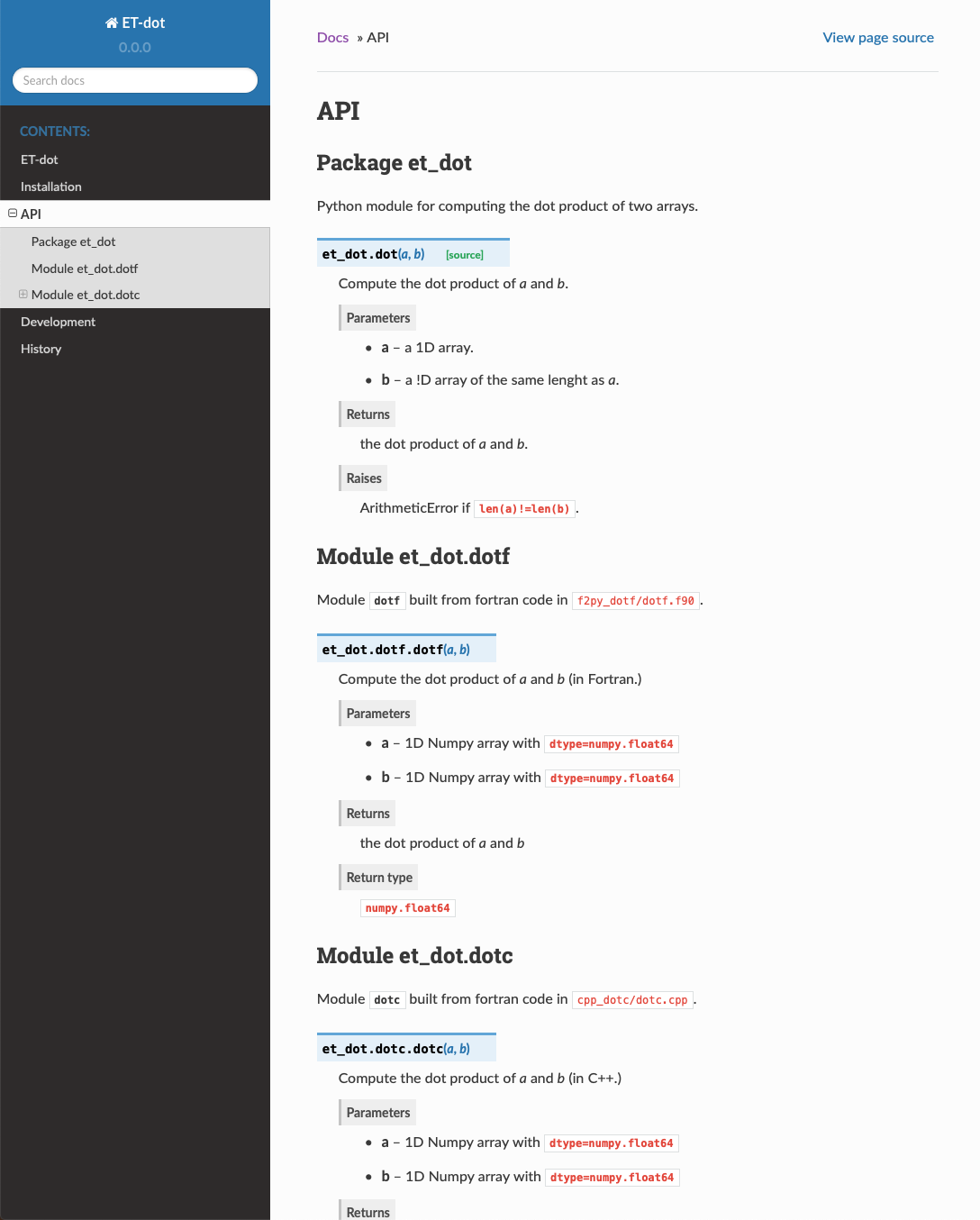
Increment the version string:
(.venv) > micc version -M -t [ERROR] Not a project directory (/Users/etijskens/software/dev/workspace/tmp/ET-dot/docs). (.venv) > cd .. (.venv) > micc version -M -t [INFO] (ET-dot)> micc version (0.3.0) -> (1.0.0) [INFO] Creating git tag v1.0.0 for project ET-dot [INFO] Done.
Note that we first got an error because we are still in the docs directory, and not in the project root directory.
Tutorial 3: Adding Python components
3.1 Adding a Python module
Just as one can add binary extension modules to a package, one can add python modules.
> micc add foo --py

[INFO]           [ Adding python module foo.py to project ET-dot.
[INFO]               - python source in    ET-doc/et_doc/foo.py.
[INFO]               - Python test code in ET-doc/tests/test_foo.py.
[INFO]           ] done.
This adds a Python sub-module to the package, and a test script. The documentation for the sub-module is extracted from doc-strings of the functions and classes in the sub-module.
As with micc create the default structure is that of a simple module, i.e.
ET-doc/et_doc/foo.py. If you want a package you can add the --package
flag.
3.2 Adding a Python Command Line Interface
Command Line Interfaces are Python scripts that you want to be installed as executable programs when a user installs your package.
As an example, assume that we need quite often to read two arrays from file and compute their dot product, and that we want to execute this operation as:
> dot-files file1 file2
dot(file1,file2) = 123.456
>
Micc supports two kinds of CLIs based on click, a very practical tool for building Python CLIs. The first one is for CLIs that execute a single task, the second one for a command with sub-commands, like git or micc itself. The single task case default, so we can create it like:
> micc app dot-files
[INFO]           [ Adding CLI dot-files without sub-commands to project ET-dot.
[INFO]               - Python source file ET-dot/et_dot/cli_dot-files.py.
[INFO]               - Python test code   ET-dot/tests/test_cli_dot-files.py.
[INFO]           ] done.
For a CLI with sub-commands one should add the flag --sub-commands.
The source code ET-dot/et_dot/cli_dot_files.py should be modified as:
# -*- coding: utf-8 -*-
"""Command line interface dot-files (no sub-commands)."""

import sys

import click
import numpy as np

from et_dot.dotf import dotf

@click.command()
@click.argument('file1')
@click.argument('file2')
@click.option('-v', '--verbosity', count=True
             , help="The verbosity of the CLI."
             , default=1
             )
def main(file1,file2,verbosity):
    """Command line interface dot-files.

    A 'hello' world CLI example.
    """
    a = np.genfromtxt(file1, dtype=np.float64, delimiter=',')
    b = np.genfromtxt(file2, dtype=np.float64, delimiter=',')
    ab = dotf(a,b)
    if verbosity>1:
        print(f"dot-files({file1},{file2}) = {ab}")
    else:
        print(ab)

if __name__ == "__main__":
    sys.exit(main())  # pragma: no cover
Here’s how to use it from the command line (without installing):
> source .venv/bin/activate
(.venv) > cat file1.txt
1,2,3,4,5
> cat file2.txt
2,2,2,2,2
(.venv) > python et_dot/cli_dot_files.py file1.txt file2.txt
30.0
(.venv) > python et_dot/cli_dot_files.py file1.txt file2.txt -vv
dot-files(file1.txt,file2.txt) = 30.0
3.2.1 Testing the application
When you add an a application like dot-files Micc automatically adds a test script
tests/test_cli_dot_files.py where you can add your tests.
Testing CLIs is a bit more complex than testing modules, but Click provides some tools
for Testing click applications.
Here is the test code:
#!/usr/bin/env python
# -*- coding: utf-8 -*-

from click.testing import CliRunner

from et_dot.cli_dot_files import main

def test_main():
    runner = CliRunner()
    result = runner.invoke(main, ['file1.txt','file2.txt'])
    print(result.output)
    ab = float(result.output[0:-1])
    assert ab==30.0
Finally, we run pytest:
> pytest
================================= test session starts =================================
platform darwin -- Python 3.7.4, pytest-4.6.5, py-1.8.0, pluggy-0.13.0
rootdir: /Users/etijskens/software/dev/workspace/ET-dot
collected 10 items

tests/test_cli_dot-files.py .                                                   [ 10%]
tests/test_cpp_dotc.py .                                                        [ 20%]
tests/test_et_dot.py .......                                                    [ 90%]
tests/test_f2py_dotf.py .                                                       [100%]

================================== 10 passed in 0.33 seconds ==========================
3.2.2 Documenting an application
When adding a CLI, Micc automatically adds documentation entries for it. in APPS.rst.
Calling micc docs will automatically extract documentation from the doc-strings of the command
and the :param ...: of the click.argument decorators in these doc-strings, and
from the help parameters of the click.option decorators.
Tutorial 4: Version control and version management
Git support
When you create a new project, Micc immediately provides a local git repository for
you and commits the initial files Micc set up for you. If you have a github account you
can register it in the preferences file ~/.micc/micc.json, using the
github_username entry:
{
...
, "github_username"  : {"default":"etijskens"
                       ,"text"   :"your github username"
                       }
...
}
Micc cannot create a remote github repository for you,
but if you registered your github username in the preferences file, it will add
a remote origin at https://github.com/etijskens/<your_project_name>/, and
try to push the files to the github repo. If you have created the remote repository
before you create the project, the new project will be immediately pushed onto
the remote origin. Otherwise, you get a warning that the remote repository does not
yet exist. You can create the remote repository whenever you like and push your work
onto the remote repository using the git CLI.
Version management
Version numbers are practical, even for a small software project used only by
yourself. For larger projects, certainly when other users start using them,
they become indispensable. When giving version numbers to a project, we highly
recommend to follow the guidelines Semantic Versioning 2.0.
Such a version number consists of Major.minor.patch. According to
semantic versioning you should increment the:
Majorversion when you make incompatible API changes,minorversion when you add functionality in a backwards compatible manner, andpatchversion when you make backwards compatible bug fixes.
Micc sets a version number of 0.0.0 when it creates a project, and you can bump the
version number at any time with the micc version command.
> micc info
Project ET-dot located at /Users/etijskens/software/dev/workspace/ET-dot
  package: et_dot
  version: 0.0.0
  structure: et_dot/__init__.py (Python package)
  contents:
    application cli_dot_files.py
    C++ module  cpp_dotc/dotc.cpp
    f2py module f2py_dotf/dotf.f90
To bump the patch component:
> micc version
Project (ET-dot version (0.0.0)
> micc version --patch
[INFO]           bumping version (0.0.0) -> (0.0.1)
Again, with the short version of --patch and verbose this time, :
> micc -vv version -p
[DEBUG] start = 2019-10-16 13:18:16.995416
[INFO]           bumping version (0.0.1) -> (0.0.2)
[DEBUG]          . Updated (/Users/etijskens/software/dev/workspace/ET-dot/pyproject.toml)
[DEBUG]          . Updated (/Users/etijskens/software/dev/workspace/ET-dot/et_dot/__init__.py)
[DEBUG] stop  = 2019-10-16 13:18:17.261962
[DEBUG] spent = 0:00:00.266546
Here, you can see that micc updated the version number in ET-dot/pyproject.toml
and ET-dot/et_dot/__init__.py.
To bump the minor component use the --minor or -m flag:
> micc version -m
[INFO]           bumping version (0.0.2) -> (0.1.0)
As you can see the patch component is reset to 0.
To bump the major component use the --major or -M flag:
> micc version -M
[INFO]           bumping version (0.1.0) -> (1.0.0)
As you can see the minor component (as well as the patch component) is reset to 0.
The version number has a --tag flag that creates a git tag (see
https://git-scm.com/book/en/v2/Git-Basics-Tagging) and trys
> micc -vv version -p --tag
[DEBUG] start = 2019-10-16 13:37:25.026161
[INFO]           bumping version (1.0.1) -> (1.0.2)
[DEBUG]          . Updated (/Users/etijskens/software/dev/workspace/ET-dot/pyproject.toml)
[DEBUG]          . Updated (/Users/etijskens/software/dev/workspace/ET-dot/et_dot/__init__.py)
[INFO]           Creating git tag v1.0.2 for project ET-dot
[DEBUG]          Running 'git tag -a v1.0.2 -m "tag version 1.0.2"'
[DEBUG]
[DEBUG]          Pushing tag v1.0.2 for project ET-dot
[DEBUG]          Running 'git push origin v1.0.2'
[DEBUG]          remote: Repository not found.
                   fatal: repository 'https://github.com/etijskens/ET-dot/' not found
[INFO]           Done.
[DEBUG] stop  = 2019-10-16 13:37:26.101959
[DEBUG] spent = 0:00:01.075798
If you created a remote github repository for your project and registered your github username in the preferences file, the tag is pushed to the remote origin.
Tutorial 5 - Publishing your code
Publishing your code is an easy way to make your code available to other users.
5.1 Publishing to the Python Package Index
For this we rely on poetry. If you do not have a PyPI account, create one and
run this command in your project directory, e.g. et-foo:
Note
It is crucial that your project name is not already taken. For this reason, we recommend that
- before you create a project that you might want to publish, you check wether your project name is not already taken.
- immediately after your project is created, you publish it, as to reserve the name forever.
Now everyone can install the package in his current Python environment as:
> pip install et-foo
5.2 Publishing packages with binary extension modules
Packages with binary extension modules are published in exactly the same way, that is,
as a Python-only project. When you pip install a Micc project the package directory
will end up in the site-packages directory of the Python environment in which you
install. The source code directories of the binary extensions modules are installed with
the package, but without the binary extensions themselves. These must be compiled locally.
Fortunately that happens automatically, at least if the binary extension were added to
the package by Micc. When Micc adds a binary extension to a project, two thing happen:
- a dependency on micc-build is added to the project, and
- in the top-level module
<package_name>/__init__.pyatry-exceptblock is added that tries to import the binary extension and in case of failure (ModuleNotFoundError) will attempt to build it using the machinery provided by micc-build. This will usually succeed, provided the necessary compilers are available.
As an example, let us create a project foo with a binary extension module bar written in C++
> micc -p Foo create
> cd auto-build
> micc add bar --cpp
This creates this Foo/foo/__init__.py:
# -*- coding: utf-8 -*-
"""
Package foo
===========

Top-level package for foo.
"""

__version__ = 0.0.0

try:
    import foo.bar
except ModuleNotFoundError as e:
    # Try to build this binary extension:
    from pathlib import Path
    import click
    from et_micc_build.cli_micc_build import auto_build_binary_extension
    msg = auto_build_binary_extension(Path(__file__).parent, 'bar')
    if not msg:
        import foo.bar
    else:
        click.secho(msg, fg='bright_red')

def hello(who='world'):
    ...
If the first import foo.bar fails, the except block imports the method
auto_build_binary_extension() and executes it arguments the path to
the package directory :file`Foo/foo` and the name of the binary extension module
bar. If the build succeeds, the msg string is empty and
foo.bar is imported at last, otherwise the error message msg
is printed.
5.3 Providing auto_build_binary_extension() with custom build parameters
The auto-build above will normally use the default build options, corresponding to -O3,
which optimizes for speed. As the auto_build_binary_extension() method is called
automatically, we have not many options to set build options. The
auto_build_binary_extension() method will look for the existence of a file
Foo/foo/cpp_bar/build_options.<platform>.json, where <platform> is Darwin,
on MACOSX, Linux` on Linux and ``Windows on Windows. If it exists, it should contain a
dict with the build options to use.
Note
The build options files are OS specific:
- On MacOSX :
build_options.Darwin.json - On Linux :
build_options.Linux.json - On Windows :
build_options.Windows.json
5.3.1 f2py module build option specifications
All options available to the f2py command line application
can be entered in the build file specification. Pure flags, like e.g. --noopt, which are present
or not, but have no value, are entered in the dictionary with value None. Below are some examples of
much used f2py flags.
import json
from pathlib import Path
import platform

f2py = {
    '--f90exec' : 'f90 compiler executable'
    '--f90flags': 'f90 compiler flags'
    '--opt'     : 'f90 compiler optimization flags'
    '--arch'    : 'f90 compiler architecture specific compiler flags'
    '--noopt'   : None # neglect '--opt' contents
    '--noarch'  : None # neglect '--arch' contents
    '--debug'   : None # compile with debugging information
}
module_srcdir_path = Path(project_path) / package_name / f"f2py_{module_name}"
with (module_srcdir_path / f"build_options.{platform.system()}.json").open('w) as f:
    json.dump(f2py, f)
Note
The Python dictionary f2py is written to file in .json format, which is
human readable. You can also construct it with an editor.
5.3.2 cpp module build option specifications
For cpp binary extension modules the build tool is CMake. Here, the entries of the build options dict consist of any CMake variable and its desired value.
import json
from pathlib import Path
import platform

cmake = {
    'CMAKE_BUILD_TYPE' : 'RELEASE',
    ...
}
module_srcdir_path = Path(project_path) / package_name / f"cpp_{module_name}"
with (module_srcdir_path / f"build_options.{platform.system()}.json").open('w) as f:
    json.dump(cmake, f)
5.4 Publishing your documentation on readthedocs.org
Publishing your documentation to Readthedocs relieves the users of your code from having to build documentation themselves. Making it happen is very easy. First, make sure the git repository of your code is published on Github.Second, create a Readthedocs account if you do not already have one. Then, go to your Readthedocs page, go to your projects and hit import project. Fill in the fields and every time you push commits to Github its documentation will be rebuild automatically and published.
Note
Sphinx must be able to import your project in order to extract the documentation.
If your codes depend on Python modules other than the standard library, this will fail and
the documentation will not be built. You can add the necessary dependencies to
<your-project>/docs/requirements.txt.
Tutorial 6 - Using conda Python and conda virtual environments
This tutorial is about using micc with conda virtual environments on your local machine.
Here are some reasons to use conda environments:
- Anaconda is popular because it brings many of the tools used in data science and machine learning with just one install, so it’s great for having short and simple setup.
- Some Python packages provided by conda are optimized for performance, e.g. Numpy is using Intel MKL (Math Kernel Library) for some of its functionality.
- Then there is the Intel Python distribution which also uses conda. It provides highly performance optimized packages.
6.1 Miniconda
If you haven’t installed miniconda on your local machine, you can follow the instructions on the miniconda installation page.
Conda Python distributions have their own way of creating and managing virtual environments but the principle is the same (see`Conda tasks <https://conda.io/projects/conda/en/latest/user-guide/tasks/index.html>`_).
Cd to our project:
> cd path/to/ET-dot
and create a virtual conda environment. We choose a different name .cenv, so the two
can live next to each other:
> conda create -p ./cenv37 python=3.7
The name chosen is arbitrary of course, but it resembles the .venv we got (by default) with
poetry, and the 37 is to distinguish different environments for different Python
versions. In fact, also the location, which was specified with -p ./cenv37 is arbitrary,
but the project root directory is a familiar place for this and compliant with our earlier
approach using virtual environments created with poetry install. Alternatively, you might
want to use the environment for other projects too, in which case you might locate it in a
different place.
This is the output generated:
Collecting package metadata (current_repodata.json): done
Solving environment: done

## Package Plan ##

  environment location: /Users/etijskens/software/dev/ET-dot/.cenv37

  added / updated specs:
    - python=3.7


The following packages will be downloaded:

    package                    |            build
    ---------------------------|-----------------
    certifi-2019.11.28         |           py37_0         156 KB
    libcxx-4.0.1               |       hcfea43d_1         947 KB
    libcxxabi-4.0.1            |       hcfea43d_1         350 KB
    libedit-3.1.20181209       |       hb402a30_0         136 KB
    libffi-3.2.1               |       h475c297_4          37 KB
    ncurses-6.1                |       h0a44026_1         732 KB
    openssl-1.1.1d             |       h1de35cc_3         3.4 MB
    pip-19.3.1                 |           py37_0         1.9 MB
    python-3.7.5               |       h359304d_0        18.1 MB
    readline-7.0               |       h1de35cc_5         316 KB
    setuptools-42.0.2          |           py37_0         645 KB
    sqlite-3.30.1              |       ha441bb4_0         2.4 MB
    tk-8.6.8                   |       ha441bb4_0         2.8 MB
    xz-5.2.4                   |       h1de35cc_4         239 KB
    zlib-1.2.11                |       h1de35cc_3          90 KB
    ------------------------------------------------------------
                                           Total:        32.1 MB

The following NEW packages will be INSTALLED:

  ca-certificates    pkgs/main/osx-64::ca-certificates-2019.11.27-0
  certifi            pkgs/main/osx-64::certifi-2019.11.28-py37_0
  libcxx             pkgs/main/osx-64::libcxx-4.0.1-hcfea43d_1
  libcxxabi          pkgs/main/osx-64::libcxxabi-4.0.1-hcfea43d_1
  libedit            pkgs/main/osx-64::libedit-3.1.20181209-hb402a30_0
  libffi             pkgs/main/osx-64::libffi-3.2.1-h475c297_4
  ncurses            pkgs/main/osx-64::ncurses-6.1-h0a44026_1
  openssl            pkgs/main/osx-64::openssl-1.1.1d-h1de35cc_3
  pip                pkgs/main/osx-64::pip-19.3.1-py37_0
  python             pkgs/main/osx-64::python-3.7.5-h359304d_0
  readline           pkgs/main/osx-64::readline-7.0-h1de35cc_5
  setuptools         pkgs/main/osx-64::setuptools-42.0.2-py37_0
  sqlite             pkgs/main/osx-64::sqlite-3.30.1-ha441bb4_0
  tk                 pkgs/main/osx-64::tk-8.6.8-ha441bb4_0
  wheel              pkgs/main/osx-64::wheel-0.33.6-py37_0
  xz                 pkgs/main/osx-64::xz-5.2.4-h1de35cc_4
  zlib               pkgs/main/osx-64::zlib-1.2.11-h1de35cc_3


Proceed ([y]/n)? y


Downloading and Extracting Packages
readline-7.0         | 316 KB    | ##################################### | 100%
libffi-3.2.1         | 37 KB     | ##################################### | 100%
pip-19.3.1           | 1.9 MB    | ##################################### | 100%
sqlite-3.30.1        | 2.4 MB    | ##################################### | 100%
zlib-1.2.11          | 90 KB     | ##################################### | 100%
libedit-3.1.20181209 | 136 KB    | ##################################### | 100%
xz-5.2.4             | 239 KB    | ##################################### | 100%
setuptools-42.0.2    | 645 KB    | ##################################### | 100%
libcxx-4.0.1         | 947 KB    | ##################################### | 100%
tk-8.6.8             | 2.8 MB    | ##################################### | 100%
python-3.7.5         | 18.1 MB   | ##################################### | 100%
certifi-2019.11.28   | 156 KB    | ##################################### | 100%
openssl-1.1.1d       | 3.4 MB    | ##################################### | 100%
ncurses-6.1          | 732 KB    | ##################################### | 100%
libcxxabi-4.0.1      | 350 KB    | ##################################### | 100%
Preparing transaction: done
Verifying transaction: done
Executing transaction: done
#
# To activate this environment, use
#
#     $ conda activate /Users/etijskens/software/dev/ET-dot/.cenv37
#
# To deactivate an active environment, use
#
#     $ conda deactivate
As mentioned at the end, we can activate the environment with the command:
> conda activate /Users/etijskens/software/dev/ET-dot/.cenv37
> (/Users/etijskens/software/dev/ET-dot/.cenv37)
Note
The command conda activate .cenv37/ would have worked too, but not
conda activate .cenv37, as conda will consider .cenv37 to be
a named environment (an environment created with conda create --name <envname>
and look it up in its default directory.
Conda provides hundreds of popular packages, which are often better optimised than the general purpose packages on PyPI. You install them using conda install:
> conda install numpy
Collecting package metadata (current_repodata.json): done
Solving environment: done

## Package Plan ##

  environment location: /Users/etijskens/software/dev/workspace/ET-dot/.cenv37

  added / updated specs:
    - numpy


The following NEW packages will be INSTALLED:

  blas               pkgs/main/osx-64::blas-1.0-mkl
  intel-openmp       pkgs/main/osx-64::intel-openmp-2019.4-233
  libgfortran        pkgs/main/osx-64::libgfortran-3.0.1-h93005f0_2
  mkl                pkgs/main/osx-64::mkl-2019.4-233
  mkl-service        pkgs/main/osx-64::mkl-service-2.3.0-py37hfbe908c_0
  mkl_fft            pkgs/main/osx-64::mkl_fft-1.0.15-py37h5e564d8_0
  mkl_random         pkgs/main/osx-64::mkl_random-1.1.0-py37ha771720_0
  numpy              pkgs/main/osx-64::numpy-1.17.4-py37h890c691_0
  numpy-base         pkgs/main/osx-64::numpy-base-1.17.4-py37h6575580_0
  six                pkgs/main/osx-64::six-1.13.0-py37_0


Proceed ([y]/n)? y

Preparing transaction: done
Verifying transaction: done
Executing transaction: done
Clearly, this numpy adds some performance optimized components from Intel like blas,
intel-openmp, mkl etc. It is important to use conda install for such packages as
pip install or poetry install would install different a different Numpy.
Finally, we run poetry install to install the remaining dependencies (we remove
poetsry.lock to allow poetry to choose the most recent version):
(/Users/etijskens/software/dev/workspace/ET-dot/.cenv37) > rm poetry.lock
(/Users/etijskens/software/dev/workspace/ET-dot/.cenv37) > poetry install
Updating dependencies
Resolving dependencies... (2.4s)

Writing lock file


Package operations: 49 installs, 0 updates, 0 removals

  - Installing chardet (3.0.4)
  - Installing idna (2.8)
  - Installing markupsafe (1.1.1)
  - Installing pyparsing (2.4.5)
  - Installing python-dateutil (2.8.1)
  - Installing pytz (2019.3)
  - Installing urllib3 (1.25.7)
  - Installing alabaster (0.7.12)
  - Installing arrow (0.15.4)
  - Installing babel (2.7.0)
  - Installing docutils (0.15.2)
  - Installing imagesize (1.1.0)
  - Installing jinja2 (2.10.3)
  - Installing more-itertools (8.0.2)
  - Installing packaging (19.2)
  - Installing pygments (2.5.2)
  - Installing requests (2.22.0)
  - Installing snowballstemmer (2.0.0)
  - Installing sphinxcontrib-applehelp (1.0.1)
  - Installing sphinxcontrib-devhelp (1.0.1)
  - Installing sphinxcontrib-htmlhelp (1.0.2)
  - Installing sphinxcontrib-jsmath (1.0.1)
  - Installing sphinxcontrib-qthelp (1.0.2)
  - Installing sphinxcontrib-serializinghtml (1.1.3)
  - Installing binaryornot (0.4.4)
  - Installing click (7.0)
  - Installing future (0.18.2)
  - Installing jinja2-time (0.2.0)
  - Installing pbr (5.4.4)
  - Installing poyo (0.5.0)
  - Installing sphinx (2.3.0)
  - Installing whichcraft (0.6.1)
  - Installing zipp (0.6.0)
  - Installing cookiecutter (1.6.0)
  - Installing importlib-metadata (1.3.0)
  - Installing semantic-version (2.8.3)
  - Installing sphinx-click (2.3.1)
  - Installing sphinx-rtd-theme (0.4.3)
  - Installing tomlkit (0.5.8)
  - Installing walkdir (0.4.1)
  - Installing atomicwrites (1.3.0)
  - Installing attrs (19.3.0)
  - Installing et-micc (0.10.13)
  - Installing pluggy (0.13.1)
  - Installing py (1.8.0)
  - Installing pybind11 (2.4.3)
  - Installing wcwidth (0.1.7)
  - Installing et-micc-build (0.10.13)
  - Installing pytest (4.6.8)
  - Installing ET-dot (1.0.0)
Clearly, Numpy is not in the install list. The numpy we installed with conda is still available:
(/Users/etijskens/software/dev/workspace/ET-dot/.cenv37) > conda list # packages in environment at /Users/etijskens/software/dev/workspace/ET-dot/.cenv37: # # Name Version Build Channel … et-dot 1.0.0 dev_0 <develop> et-micc 0.10.13 pypi_0 pypi et-micc-build 0.10.13 pypi_0 pypi … intel-openmp 2019.4 233 … libgfortran 3.0.1 h93005f0_2 … mkl 2019.4 233 mkl-service 2.3.0 py37hfbe908c_0 mkl_fft 1.0.15 py37h5e564d8_0 mkl_random 1.1.0 py37ha771720_0 … numpy 1.17.4 py37h890c691_0 numpy-base 1.17.4 py37h6575580_0 …
Notice the last Channel column, which describes from where the packages come.
The pypi entries where installed from PyPI during the poetry install
command. The <develop> entry refers our current project ET-dot which was installed
in ‘development’ mode, meaning that modification to the .py files are
immediately seen by the environment.
Run pytest to verify that everything is working fine:
(/Users/etijskens/software/dev/workspace/ET-dot/.cenv37) > python -m pytest
========================================= test session starts ==========================================
platform darwin -- Python 3.7.5, pytest-4.6.8, py-1.8.0, pluggy-0.13.1
rootdir: /Users/etijskens/software/dev/workspace/ET-dot
collected 9 items

tests/test_cpp_dotc.py .                                                                         [ 11%]
tests/test_et_dot.py .......                                                                     [ 88%]
tests/test_f2py_dotf.py .                                                                        [100%]

=========================================== warnings summary ===========================================
.cenv37/lib/python3.7/site-packages/cookiecutter/repository.py:19
  /Users/etijskens/software/dev/workspace/ET-dot/.cenv37/lib/python3.7/site-packages/cookiecutter/repository.py:19: DeprecationWarning: Flags not at the start of the expression '\n(?x)\n((((git|hg)\\+)' (truncated)
    """)

-- Docs: https://docs.pytest.org/en/latest/warnings.html
================================ 9 passed, 1 warnings in 23.77 seconds =================================
This was all run in a fresh git clone of ET-dot, without the binary extensions. That
there are no errors implies that the auto-build feature was succesfully engaged to build
the binary extensions et_dot/dotf and et_dot/dotc.
6.2 Intel distribution for Python
The Intel Python distribution is also based on conda. It contains many popular packages for high performance computing, data analytics, machine learning and artificial intelligence. The 2020 release announces:
- Faster machine learning with scikit-learn key algorithms accelerated with Intel DAAL
- Help address the needs of data scientists to harness Intel DAAL capabilities with a Python API using daal4py package improvements
- Speed up pandas and NumPy with a compiler-based framework: High Performance Analytics Toolkit (HPAT)
- Includes the latest TensorFlow and Caffe libraries that are optimized for Intel® architecture
To create a conda environment for the Intel distribution for Python follow these instructions:
Cd into your project root directory:
> cd path/to/ET-dot
and create the environment:
> conda create -p ./.idp -c intel intelpython3_core python=3 Collecting package metadata (current_repodata.json): done Solving environment: done
## Package Plan ##
environment location: /Users/etijskens/software/dev/workspace/ET-dot/.idp
- added / updated specs:
- intelpython3_core
- python=3
The following NEW packages will be INSTALLED:
bzip2 intel/osx-64::bzip2-1.0.8-0 certifi intel/osx-64::certifi-2019.9.11-py37_0 icc_rt intel/osx-64::icc_rt-2020.0-intel_166 intel-openmp intel/osx-64::intel-openmp-2020.0-intel_166 intelpython intel/osx-64::intelpython-2020.0-1 intelpython3_core intel/osx-64::intelpython3_core-2020.0-0 libffi intel/osx-64::libffi-3.2.1-11 mkl intel/osx-64::mkl-2020.0-intel_166 mkl-service intel/osx-64::mkl-service-2.3.0-py37_0 mkl_fft intel/osx-64::mkl_fft-1.0.15-py37ha68da19_3 mkl_random intel/osx-64::mkl_random-1.1.0-py37ha68da19_0 numpy intel/osx-64::numpy-1.17.4-py37ha68da19_4 numpy-base intel/osx-64::numpy-base-1.17.4-py37_4 openssl intel/osx-64::openssl-1.1.1d-0 pip intel/osx-64::pip-19.1.1-py37_0 python intel/osx-64::python-3.7.4-3 pyyaml intel/osx-64::pyyaml-5.1.1-py37_0 scipy intel/osx-64::scipy-1.3.2-py37ha68da19_0 setuptools intel/osx-64::setuptools-41.0.1-py37_0 six intel/osx-64::six-1.12.0-py37_0 sqlite intel/osx-64::sqlite-3.29.0-0 tbb intel/osx-64::tbb-2020.0-intel_166 tbb4py intel/osx-64::tbb4py-2020.0-py37_intel_0 tcl intel/osx-64::tcl-8.6.4-24 tk intel/osx-64::tk-8.6.4-29 wheel intel/osx-64::wheel-0.31.0-py37_3 xz intel/osx-64::xz-5.2.4-h1de35cc_7 yaml intel/osx-64::yaml-0.1.7-2 zlib intel/osx-64::zlib-1.2.11-h1de35cc_7Proceed ([y]/n)? y
Preparing transaction: done Verifying transaction: done Executing transaction: done # # To activate this environment, use # # $ conda activate /Users/etijskens/software/dev/workspace/ET-dot/.idp # # To deactivate an active environment, use # # $ conda deactivate
Note
If you haven’t installed a conda Python distribution before, the fastest way to obtain conda is to install Miniconda.
As before, you can now activate the environment:
> conda activate .idp/
(/Users/etijskens/software/dev/workspace/ET-dot/.idp) >
We do not recommend to use poetry install to install the project`s dependencies. (The
Intel distribution for Python, apparently, uses distutils instead of pip for its distributions,
wich causes problems). Rather, install them manually:
(/Users/etijskens/software/dev/workspace/ET-dot/.idp) > pip install et-micc-build
...
(/Users/etijskens/software/dev/workspace/ET-dot/.idp) > pip install pytest
...
Finally, run the tests:
> python -m pytest ============================= test session starts ============================== platform darwin – Python 3.7.4, pytest-5.3.2, py-1.8.0, pluggy-0.13.1 rootdir: /Users/etijskens/software/dev/workspace/ET-dot collected 9 items
tests/test_cpp_dotc.py . [ 11%] tests/test_et_dot.py ……. [ 88%] tests/test_f2py_dotf.py . [100%]
============================== 9 passed in 4.50s ===============================
Tutorial 7 - Using micc projects on the VSC-clusters
We distinguish to cases:
- installing a micc-project for further development, and
- installing a micc-project (in a virtual environment) for use in production runs.
Note
This tutorial uses the Leibniz cluster of the University of Antwerp as an example. The principles pertain, however, to all VSC clusters, and most probably also to other clusters using a module system for exposing its software stack.
7.1 Micc use on the cluster for developing code
Most differences between using your local machine and using the cluster stem from the fact that the cluster uses a module system for making software available to the user, and less importantly, that the cluster uses a scheduler to run your compute jobs in batch mode when the hardware you requested is available.
Most tools that are commonly used on the cluster are built for optimal performance and
pre-installed on the cluster. You need to make them available for execution by
module load commands (for all the details see
Using the module system).
Although the operating system also exposes some tools such as compilers, as they
are many versions behind and, consequentially, they are not fit for high performance
computing. As an example consider the git command. This is the git version exposed by
the operating system:
> which git
/usr/bin/git
> git --version
git version 1.8.3.1
When you load the git module you get version 2.13.3:
> module load git
> which git
/apps/antwerpen/broadwell/centos7/git/2.13.3/bin/git
Though this is not the very latest git version, but it is definitely way ahead of 1.8.3.1. Moreover, both versions differ in the major component of the version, which indicates that they are not backward compatible.
As git is now available, we can clone the git repository of our ET-dot project in some
workspace directory (preferably somewhere on $VSC_DATA) and cd into the project
directory:
> cd $VSC_DATA/path/to/my/workspace
> git clone https://github.com/etijskens/ET-dot
Cloning into 'ET-dot'...
remote: Enumerating objects: 116, done.
remote: Counting objects: 100% (116/116), done.
remote: Compressing objects: 100% (74/74), done.
remote: Total 116 (delta 45), reused 100 (delta 29), pack-reused 0
Receiving objects: 100% (116/116), 29.90 KiB | 0 bytes/s, done.
Resolving deltas: 100% (45/45), done.
> cd ET-dot
Note
It is good practice to clone git repositories in $VSC_DATA. Doing this in
$VSC_HOME can easily consume all your file quota, and $VSC_SCRATCH is
not backed up.
You will need also to load CMake if you want to build binary extension modules from C++
source code as the dotc module:
> module load CMake
On our local machine we would now select a python version with pyenv, and run
poetry install to create a virtual environment and install ET-dot’s
dependencies. The pyenv part is again replaced by a module load command, e.g.:
> module load leibniz/2019b
> module load Python/3.7.4-intel-2019b
The first command selects all modules built with the Intel 2019b toolchain, and the second makes Python 3.7.4 available together with a whole bunch of pre-installed Python packages which are useful for high performance computing, such as numpy, as well as all their dependencies. To see them execute:
> pip list
Package            Version
------------------ ------------
absl-py            0.7.1
alabaster          0.7.12
appdirs            1.4.3
...
numpy              1.17.0
...
or:
> conda list
???
The poetry part, requires - at least at the time of writing - some special attention.
7.1.1 Note about using Poetry on the cluster
On our local machine we used poetry for
- virtual environment creation and management,
- installation of dependencies in a project’s virtual environment, using the commands
poetry install,poetry update,poetry addandpoetry remove,
- for publishing to PyPi, with command
poetry publish.
We do not recommend using Poetry for installing dependencies on the cluster. The
main reason for this is that poetry masks any pre-installed Python packages that are made
available by the cluster software stack. Every Python distribution on the cluster comes
with a such set of pre-installed packages that are important for high performance computing,
and are built (compiled) to squeeze out the last bit of performance out of the hardware on
which they will run. Typical examples are Numpy, Scipy,
pandas, … Poetry install will install equally
functional packages which are built for running on many different hardwares, rather than for
optimal performance. By using poetry install performances will be sacrificed. In addition,
re-installing these packages consumes a lot of your file quota.
To avoid trouble, we thus recommend to not install poetry on the cluster. If you
want to publish your package, commit the changes to the git repository, push them
to github, fetch the latest version on your local machine and use poetry publish --build
to publish.
7.1.2 Virtual environments and dependencies on the cluster
If we can’t use Poetry for creating virtual environments and installing dependencies, we need some alternative way to achieve this. Fortunately, just doing this by hand is not too difficult.
Creating a virtual environment in the project root directory is simple:
> python -m venv .venv --system-site-packages
This command uses the venv package to create a virtual environment named .venv.
The --system-site-packages flag ensures that the virtual environment also sees all the
pre-installed Python packages. The environment name is in fact arbitrary, but we choose to
use the same name as Poetry would use. The environment name is also the name of the directory
containing the virtual environment:
> tree .venv
.venv
├── bin
│   ├── activate
│   ├── activate.csh
│   ├── activate.fish
│   ├── easy_install
│   ├── easy_install-3.7
│   ├── pip
│   ├── pip3
│   ├── pip3.7
│   ├── python -> /apps/antwerpen/broadwell/centos7/Python/3.7.4-intel-2019b/bin/python
│   └── python3 -> python
├── include
├── lib
│   └── python3.7
│       └── site-packages
│           ├── easy_install.py
│           ├── pip
│           │   ├── __init__.py
│           │   ├──
This virtual environment can be activated by executing:
> source .venv/bin/activate
(.venv) >
As on our local machine the command prompt contains a small notice as to the activated virtual environment. If in doubt you can always inspect the full path of the python executable:
(.venv) > which python
/data/antwerpen/201/vsc2017/workspace/ET-dot/.venv/bin/python
To install the dependencies needed by the ET-dot project, we have two options,
a quick and dirty approach and a systematic approach. Let’s be systematic first,
and checking the [tool.poetry.dependencies] section of the project’s
pyproject.toml file,
(.venv) > cat pyproject.toml
...
[tool.poetry.dependencies]
python = "^3.7"
et-micc-build = "^0.10.10"

[tool.poetry.dev-dependencies]
pytest = "^4.4.2"

...
The [tool.poetry.dependencies] section tells us that the our project depends on
micc-build, so we install it with pip, which is the standard Python install tool:
(.venv) > pip install et-micc-build
Collecting et-micc-build
  Downloading https://files.pythonhosted.org/packages/aa/00/d95e6cf3b584c1921655258ed4d5a51120ba0ad158e6ee9c0122b2ccd0b2/et_micc_build-0.10.11-py3-none-any.whl
...
As we did not specify a version, it will install the latest version of micc-build as
well as all its dependencies, but contrary to poetry install, it will only install
packages for which the version specification is not met. E.g. the system site packages
of the Python/3.7.4-intel-2019b module contain Numpy 1.17.0 which satisfies the
version specification by micc-build and thus Numpy is not installed, as is clear from the
output:
...
Requirement already satisfied: numpy<2.0.0,>=1.17.0 in /apps/antwerpen/broadwell/centos7/Python/3.7.4-intel-2019b/lib/python3.7/site-packages/numpy-1.17.0-py3.7-linux-x86_64.egg (from et-micc-build) (1.17.0)
...
This is exactly the behavior we were looking for to avoid masking the system site packages.
An interesting side effect is that, since micc is a dependency of micc-build, micc is now installed in our virtual environment, and thus can be used to assist the further development of the project:
(.venv) > which micc
/data/antwerpen/201/vsc20170/workspace/ET-dot/.venv/bin/micc
(.venv) > micc --version
micc, version 0.10.11
As micc-build is the only dependency, we can verify that everything works fine by running
pytest:
(.venv) > python -m pytest
Note
just running pytest will fail because then pytest cannot see our virtual
environment and will fail to import et_dot.
Here is the result:
========================================== test session starts ==========================================
platform linux -- Python 3.7.4, pytest-5.0.1, py-1.8.0, pluggy-0.12.0
rootdir: /data/antwerpen/201/vsc20170/workspace/ET-dot
plugins: xonsh-0.9.9
collected 9 items

tests/test_cpp_dotc.py .                                                                          [ 11%]
tests/test_et_dot.py .......                                                                      [ 88%]
tests/test_f2py_dotf.py .                                                                         [100%]

=========================================== warnings summary ============================================
/apps/antwerpen/broadwell/centos7/Python/3.7.4-intel-2019b/lib/python3.7/site-packages/future-0.17.1-py3.7.egg/past/translation/__init__.py:35
  /apps/antwerpen/broadwell/centos7/Python/3.7.4-intel-2019b/lib/python3.7/site-packages/future-0.17.1-py3.7.egg/past/translation/__init__.py:35: DeprecationWarning: the imp module is deprecated in favour of importlib; see the module's documentation for alternative uses
    import imp

/apps/antwerpen/broadwell/centos7/Python/3.7.4-intel-2019b/lib/python3.7/site-packages/future-0.17.1-py3.7.egg/past/types/oldstr.py:5
  /apps/antwerpen/broadwell/centos7/Python/3.7.4-intel-2019b/lib/python3.7/site-packages/future-0.17.1-py3.7.egg/past/types/oldstr.py:5: DeprecationWarning: Using or importing the ABCs from 'collections' instead of from 'collections.abc' is deprecated, and in 3.8 it will stop working
    from collections import Iterable

/apps/antwerpen/broadwell/centos7/Python/3.7.4-intel-2019b/lib/python3.7/site-packages/future-0.17.1-py3.7.egg/past/builtins/misc.py:4
  /apps/antwerpen/broadwell/centos7/Python/3.7.4-intel-2019b/lib/python3.7/site-packages/future-0.17.1-py3.7.egg/past/builtins/misc.py:4: DeprecationWarning: Using or importing the ABCs from 'collections' instead of from 'collections.abc' is deprecated, and in 3.8 it will stop working
    from collections import Mapping

.venv/lib/python3.7/site-packages/cookiecutter/repository.py:19
  /data/antwerpen/201/vsc20170/workspace/ET-dot/.venv/lib/python3.7/site-packages/cookiecutter/repository.py:19: DeprecationWarning: Flags not at the start of the expression '\n(?x)\n((((git|hg)\\+)' (truncated)
    """)

-- Docs: https://docs.pytest.org/en/latest/warnings.html
================================= 9 passed, 4 warnings in 11.04 seconds =================================
Except for some DeprecationWarning warnings which are out of our reach, all tests succeed. Note,
however, that if we hadn’t loaded the CMake module, building the dotc binary extension
would fail with and error telling that CMake cannot be found.
The second, quick and dirty approach, avoids checking the project’s pyproject.toml
file and runs python -m pytest right away, which (if we hadn’t already installed micc-build)
would fail all three tests:
> python -m pytest
========================================== test session starts ==========================================
platform linux -- Python 3.7.4, pytest-5.0.1, py-1.8.0, pluggy-0.12.0
rootdir: /data/antwerpen/201/vsc20170/workspace/ET-dot
plugins: xonsh-0.9.9
collected 0 items / 3 errors

================================================ ERRORS =================================================
________________________________ ERROR collecting tests/test_cpp_dotc.py ________________________________
ImportError while importing test module '/data/antwerpen/201/vsc20170/workspace/ET-dot/tests/test_cpp_dotc.py'.
Hint: make sure your test modules/packages have valid Python names.
Traceback:
et_dot/__init__.py:10: in <module>
    import et_dot.dotc
E   ModuleNotFoundError: No module named 'et_dot.dotc'

During handling of the above exception, another exception occurred:
tests/test_cpp_dotc.py:9: in <module>
    import et_dot.dotc as cpp
et_dot/__init__.py:15: in <module>
    from et_micc_build.cli_micc_build import auto_build_binary_extension
E   ModuleNotFoundError: No module named 'et_micc_build'
_________________________________ ERROR collecting tests/test_et_dot.py _________________________________
ImportError while importing test module '/data/antwerpen/201/vsc20170/workspace/ET-dot/tests/test_et_dot.py'.
Hint: make sure your test modules/packages have valid Python names.
Traceback:
et_dot/__init__.py:10: in <module>
    import et_dot.dotc
E   ModuleNotFoundError: No module named 'et_dot.dotc'

During handling of the above exception, another exception occurred:
tests/test_et_dot.py:10: in <module>
    import et_dot
et_dot/__init__.py:15: in <module>
    from et_micc_build.cli_micc_build import auto_build_binary_extension
E   ModuleNotFoundError: No module named 'et_micc_build'
_______________________________ ERROR collecting tests/test_f2py_dotf.py ________________________________
ImportError while importing test module '/data/antwerpen/201/vsc20170/workspace/ET-dot/tests/test_f2py_dotf.py'.
Hint: make sure your test modules/packages have valid Python names.
Traceback:
et_dot/__init__.py:10: in <module>
    import et_dot.dotc
E   ModuleNotFoundError: No module named 'et_dot.dotc'

During handling of the above exception, another exception occurred:
tests/test_f2py_dotf.py:8: in <module>
    import et_dot.dotf as f90
et_dot/__init__.py:15: in <module>
    from et_micc_build.cli_micc_build import auto_build_binary_extension
E   ModuleNotFoundError: No module named 'et_micc_build'
!!!!!!!!!!!!!!!!!!!!!!!!!!!!!!!! Interrupted: 3 errors during collection !!!!!!!!!!!!!!!!!!!!!!!!!!!!!!!!
======================================== 3 error in 0.34 seconds ========================================
All three tests fail in more or less the same way. E.g in the last test there is first
a ModuleNotFoundError:
E ModuleNotFoundError: No module named 'et_dot.dotc'
which tells us that the binary extension dotc is not found. This is logical
because it hasn’t been built. (You can verify that there are no .so files by
running ls -l et_dot.) The auto-build feature should normally take care of that.
The error gives rise to another ModuleNotFoundError:
E ModuleNotFoundError: No module named 'et_micc_build'
which tells us that micc-build is not installed in our virtual environment, which is
indeed necessary for engaging the auto-build feature. So we pip install it:
(.venv) > pip install et-micc-build
Collecting et-micc-build
...
and run the tests again to see that they succeed, meaning that the binary modules were built, and that the auto-build feature was successfully engaged.
If the project needs other packages, you would continue to have ModuleNotFoundError
exceptions.
Each time you] pip install the missing package, and run the test until no more
ModuleNotFoundError exceptions arise and you are good to go.
A bash script for creating and activating the virtual environment may be practical,
e.g. micc-setup, stored in some directory which is on your system PATH:
#!/bin/bash
# This is file micc-setup

# load the modules needed
module load leibniz/2019b
module load Python/3.7.4-intel-2019b
module load CMake
module list

if [ -d  ".venv" ]
then
    echo "Virtual environment present: '.venv'"
    echo "Activating '.venv' ..."
    source .venv/bin/activate
else
    # create new virtual environment
    python -m venv .venv --system-site-packages
    source .venv/bin/activate
    pip install et-micc
fi
If most of your projects have binary extensions, you might choose to
pip install et-micc-build on the second but last line.
When run in the project root directory, this script loads the needed modules and
activates the project’s virtual environment .venv if it exists, and, otherwise,
create it and install micc. The dependencies of the project you must install yourself.
You must source this script in the project root directory. If you do not source the
script, the environment will be correctly setup, but the virtual environment will not be
activated when after the script terminates, nor will the modules be loaded:
> cd path/to/ET-dot
> source micc-setup

Currently Loaded Modules:
  1) leibniz/2019b                  9) SQLite/3.29.0-intel-2019b
  2) GCCcore/8.3.0                 10) HDF5/1.8.21-intel-2019b-MPI
  3) binutils/2.32-GCCcore-8.3.0   11) METIS/5.1.0-intel-2019b-i32-fp64
  4) intel/2019b                   12) SuiteSparse/4.5.6-intel-2019b-METIS-5.1.0
  5) baselibs/2019b-GCCcore-8.3.0  13) Python/3.7.4-intel-2019b
  6) Tcl/8.6.9-intel-2019b         14) git/2.13.3
  7) X11/2019b-GCCcore-8.3.0       15) CMake/3.11.1
  8) Tk/8.6.9-intel-2019b
Virtual environment present: '.venv'
Activating '.venv' ...
(.venv) >
This micc-setup script work for every project, but the modules loaded are
hardcoded. You can of course elaborate on this very simple script.
7.2 Using a micc project as a dependency
To use a micc project such as ET-dot in an other project, say foo, is simple. Create a
virtual environment in foo and use pip install. Using the micc-setup script whe
wrote before:
> cd path/to/foo
> source micc-setup

The following have been reloaded with a version change:
  1) leibniz/supported => leibniz/2019b


Currently Loaded Modules:
  1) leibniz/2019b
  2) GCCcore/8.3.0
  3) binutils/2.32-GCCcore-8.3.0
  4) intel/2019b
  5) baselibs/2019b-GCCcore-8.3.0
  6) Tcl/8.6.9-intel-2019b
  7) X11/2019b-GCCcore-8.3.0
  8) Tk/8.6.9-intel-2019b
  9) SQLite/3.29.0-intel-2019b
 10) HDF5/1.8.21-intel-2019b-MPI
 11) METIS/5.1.0-intel-2019b-i32-fp64
 12) SuiteSparse/4.5.6-intel-2019b-METIS-5.1.0
 13) Python/3.7.4-intel-2019b
 14) git/2.13.3
 15) CMake/3.11.1
Creating  new virtual environment '.venv'
Activating '.venv' ...
Installing micc ...
Collecting et-micc
  ...
(.venv) > pip install git+https://github.com/etijskens/ET-dot
Collecting git+https://github.com/etijskens/ET-dot
  Cloning https://github.com/etijskens/ET-dot to /tmp/pip-req-build-i1ta63e3
  Installing build dependencies ... done
  Getting requirements to build wheel ... done
  Installing backend dependencies ... done
    Preparing wheel metadata ... done
Collecting et-micc-build<0.11.0,>=0.10.10 (from et-dot==1.0.0)
  ...
Note that we installed ET-dot directly from github. If we had published it to
PyPi, pip install ET-dot would have been sufficient.
7.2.1 Using virtual environments in batch jobs
Using project foo in a batch job is exactly the same as on the command line. You
must load the cluster modules you need, and activate the environment. Here is an example
(PBS) job script, assuming that foo.py is a python script that imports et_dot
#!/usr/bin/env bash
#PBS -l nodes=1:ppn=1
#PBS -l walltime=00:05:00
#PBS -l pmem=1gb

cd $VSC_DATA/path/to/foo
# load necessary cluster modules and activate virtual environment
source micc-setup
# run python script
python foo.py
7.3 Using conda Python distributions
You can set up your own Conda virtual environments on the cluster, just as we described
in Tutorial 6 - Using conda python and conda virtual environments. The problem with that
approach is that it consumes a lot of your file quota due to the fact that it relies much
more on copies than the Python venv module. For that reason we do not recommend it.
If you, nevertheless, use this approach, make sure you set this up in the $VSC_DATA file
space, because if you do it in the $VSC_HOME file space, you will probably run out of file
quota before the virtual environment is ready.
Note
interesting links when investigating the above statement:
There is, however, an alternative method which uses the PYTHONPATH environment variable to extend the IntelPython3 cluster modules. It is a bit of a low-level hack, but it is not overly complicated, and works well.
First, we select the toolchain:
> module load leibniz/2019b
The following have been reloaded with a version change:
  1) leibniz/supported => leibniz/2019b
Then we load an IntelPython version (which is a conda distribution optimized by Intel):
> module load IntelPython3/2019b.05
> python --version
Python 3.6.9 :: Intel Corporation
As usual it comes with a whole bu of pre-installed Python packages:
> conda list
# packages in environment at /apps/antwerpen/x86_64/centos7/intel-psxe/2019_update5/intelpython3:
#
asn1crypto                0.24.0                   py36_3    intel
bzip2                     1.0.6                        18    intel
certifi                   2018.1.18                py36_2    intel
cffi                      1.11.5                   py36_3    intel
chardet                   3.0.4                    py36_3    intel
conda                     4.3.31                   py36_3    intel
...
Cd into our project’s root directory:
> cd $VSC_DATA/workspace/ET-dot
Here we create a directory that will serve as a surrogate for the a virtual environment:
> mkdir .cenv
The name chosens is arbitrary of course, but it resembles the .venv we had above when using
the venv Python package. In fact, also the location is arbitrary, but the project
root directory is a familiar place for this.
Next, we use pip to install et-micc-build into .cenv:
> pip install -t .cenv et-micc-build
Collecting et-micc-build==0.10.13
  Using cached https://files.pythonhosted.org/packages/1f/41/a3c2ca300f735742f7183127afaf302e3c9875ff14dedf1cf14b1850774e/et_micc_build-0.10.13-py3-none-any.whl
...
Successfully installed MarkupSafe-1.1.1 Pygments-2.5.2 alabaster-0.7.12 arrow-0.15.4
babel-2.7.0 binaryornot-0.4.4 certifi-2019.11.28 chardet-3.0.4 click-7.0 cookiecutter-1.6.0
docutils-0.15.2 et-micc-0.10.13 et-micc-build-0.10.13 future-0.18.2 idna-2.8 imagesize-1.1.0
jinja2-2.10.3 jinja2-time-0.2.0 numpy-1.17.4 packaging-19.2 pbr-5.4.4 poyo-0.5.0 pybind11-2.4.3
pyparsing-2.4.5 python-dateutil-2.8.1 pytz-2019.3 requests-2.22.0 semantic-version-2.8.3
setuptools-42.0.2 six-1.13.0 snowballstemmer-2.0.0 sphinx-2.3.0 sphinx-click-2.3.1
sphinx-rtd-theme-0.4.3 sphinxcontrib-applehelp-1.0.1 sphinxcontrib-devhelp-1.0.1
sphinxcontrib-htmlhelp-1.0.2 sphinxcontrib-jsmath-1.0.1 sphinxcontrib-qthelp-1.0.2
sphinxcontrib-serializinghtml-1.1.3 tomlkit-0.5.8 urllib3-1.25.7 walkdir-0.4.1
whichcraft-0.6.1
Note, that Numpy 1.17.4 is installed too, which we wanted to avoid because it is not optimised
for the cluster. Because we are not installing into the environment’s site-packages
directory, pip does not cross-check if the packages are already available there and there
is no flag to make it do that. Hence, we must manually remove numpy:
> rm -rf .cenv/numpy*\
We must also install pytest as it is not in the Intel Python distribution, nor is it a dependency of micc-build.
> pip install -t .cenv pytest
Now set the PYTHONPATH environment variable ot the .cenv directory and export it:
> export PYTHONPATH=$PWD/.cenv
Note
The PYTHONPATH environment variable is retained for the duration of the terminal
session.
Run pytest to see if everything is working:
> python -m pytest
========================================================== test session starts ==========================================================
platform linux -- Python 3.6.9, pytest-5.3.2, py-1.8.0, pluggy-0.13.1
rootdir: /data/antwerpen/201/vsc20170/workspace/ET-dot
collected 8 items / 1 error / 7 selected

================================================================ ERRORS =================================================================
________________________________________________ ERROR collecting tests/test_cpp_dotc.py ________________________________________________
tests/test_cpp_dotc.py:10: in <module>
    cpp = et_dot.dotc
E   AttributeError: module 'et_dot' has no attribute 'dotc'
------------------------------------------------------------ Captured stdout ------------------------------------------------------------
[ERROR]
    Binary extension module 'bar{get_extension_suffix}' could not be build.
    Any attempt to use it will raise exceptions.

...
------------------------------------------------------------ Captured stderr ------------------------------------------------------------
[INFO] [ Building cpp module 'dotc':
[INFO]           Building using default build options.
[DEBUG]          [ > cmake -D PYTHON_EXECUTABLE=/apps/antwerpen/x86_64/centos7/intel-psxe/2019_update5/intelpython3/bin/python -D pybind11_DIR=/data/antwerpen/201/vsc20170/workspace/ET-dot/.cenv/et_micc_build/cmake_tools ..
[DEBUG]              (stdout)
                       -- The CXX compiler identification is GNU 4.8.5
                       -- Check for working CXX compiler: /usr/bin/c++
                       -- Check for working CXX compiler: /usr/bin/c++ -- works
                       -- Detecting CXX compiler ABI info
                       -- Detecting CXX compiler ABI info - done
                       -- Detecting CXX compile features
                       -- Detecting CXX compile features - done
                       -- Found PythonInterp: /apps/antwerpen/x86_64/centos7/intel-psxe/2019_update5/intelpython3/bin/python (found version "3.6.9")
                       -- Found PythonLibs: /apps/antwerpen/x86_64/centos7/intel-psxe/2019_update5/intelpython3/lib/libpython3.6m.so
                       -- Performing Test HAS_CPP14_FLAG
                       -- Performing Test HAS_CPP14_FLAG - Failed
                       -- Performing Test HAS_CPP11_FLAG
                       -- Performing Test HAS_CPP11_FLAG - Success
                       -- Performing Test HAS_FLTO
                       -- Performing Test HAS_FLTO - Success
                       -- LTO enabled
                       -- Configuring done
                       -- Generating done
                       -- Build files have been written to: /data/antwerpen/201/vsc20170/workspace/ET-dot/et_dot/cpp_dotc/_cmake_build
[DEBUG]          ] done.
[DEBUG]          [ > make
[WARNING]            > make
[WARNING]            (stdout)
                     Scanning dependencies of target dotc
                     [ 50%] Building CXX object CMakeFiles/dotc.dir/dotc.cpp.o
[WARNING]            (stderr)
                     /data/antwerpen/201/vsc20170/workspace/ET-dot/et_dot/cpp_dotc/dotc.cpp:8:31: fatal error: pybind11/pybind11.h: No such file or directory
                      #include <pybind11/pybind11.h>
                                                    ^
                     compilation terminated.
                     make[2]: *** [CMakeFiles/dotc.dir/dotc.cpp.o] Error 1
                     make[1]: *** [CMakeFiles/dotc.dir/all] Error 2
                     make: *** [all] Error 2
[DEBUG]          ] done.
[INFO] ] done.
[INFO] [ Building f2py module 'dotf':
[INFO]           Building using default build options.
_f2py_build/src.linux-x86_64-3.6/dotfmodule.c:144:12: warning: ‘f2py_size’ defined but not used [-Wunused-function]
 static int f2py_size(PyArrayObject* var, ...)
            ^
[DEBUG]          [ > ln -sf /data/antwerpen/201/vsc20170/workspace/ET-dot/et_dot/f2py_dotf/dotf.cpython-36m-x86_64-linux-gnu.so /data/antwerpen/201/vsc20170/workspace/ET-dot/et_dot/dotf.cpython-36m-x86_64-linux-gnu.so
[DEBUG]          ] done.
[INFO] ] done.
=========================================================== warnings summary ============================================================
/user/antwerpen/201/vsc20170/data/workspace/ET-dot/.cenv/past/builtins/misc.py:45
  /user/antwerpen/201/vsc20170/data/workspace/ET-dot/.cenv/past/builtins/misc.py:45: DeprecationWarning: the imp module is deprecated in favour of importlib; see the module's documentation for alternative uses
    from imp import reload

/user/antwerpen/201/vsc20170/data/workspace/ET-dot/.cenv/cookiecutter/repository.py:19
  /user/antwerpen/201/vsc20170/data/workspace/ET-dot/.cenv/cookiecutter/repository.py:19: DeprecationWarning: Flags not at the start of the expression '\n(?x)\n((((git|hg)\\+)' (truncated)
    """)

-- Docs: https://docs.pytest.org/en/latest/warnings.html
!!!!!!!!!!!!!!!!!!!!!!!!!!!!!!!!!!!!!!!!!!!!!!!! Interrupted: 1 error during collection !!!!!!!!!!!!!!!!!!!!!!!!!!!!!!!!!!!!!!!!!!!!!!!!!
===================================================== 2 warnings, 1 error in 6.40s ======================================================
Inspecting the output shows us that we are half way: the f2py module dotf was built,
but the cpp module dotc failed to build because the pybind11 include files could not
be found. Although pybind11-2.4.3 appears in the output of pip install -t .cenv et-micc-build
above, it only installs the python components (which we don’t need) and not the include files
(which we do need). This is not to difficult to solve. First clone the pybind11 git repo
somewhere in $VSC_DATA. We choose to do that in the parent directory of ET-dot:
> git clone https://github.com/pybind/pybind11.git
Cloning into 'pybind11'...
remote: Enumerating objects: 38, done.
remote: Counting objects: 100% (38/38), done.
remote: Compressing objects: 100% (30/30), done.
remote: Total 11291 (delta 14), reused 12 (delta 3), pack-reused 11253
Receiving objects: 100% (11291/11291), 4.22 MiB | 2.32 MiB/s, done.
Resolving deltas: 100% (7612/7612), done.
Next, we must tell our ET-dot project where it can find the pybind11 include files. Cd into the
_cmake_build directory and edit the CMakeCache.txt file:
> cd ET-dot/et_dot/cpp_dotc/_cmake_build
> vim CMakeCache.txt                        # or whatever editor you like...
...
There should be a CMAKE_CXX_FLAGS:STRING entry which must be set to -I, followed
by the exact path of the pybind11/include/ directory:
//Flags used by the CXX compiler during all build types.
CMAKE_CXX_FLAGS:STRING=-I/data/antwerpen/201/vsc20170/workspace/pybind11/include/
Finally, running pytest again, we see that all our problems are solved:
> python -m pytest
================================================ test session starts =================================================
platform linux -- Python 3.6.9, pytest-5.3.2, py-1.8.0, pluggy-0.13.1
rootdir: /data/antwerpen/201/vsc20170/workspace/ET-dot
collected 9 items

tests/test_cpp_dotc.py .                                                                                       [ 11%]
tests/test_et_dot.py .......                                                                                   [ 88%]
tests/test_f2py_dotf.py .                                                                                      [100%]

================================================= 9 passed in 0.25s ==================================================